
Ten photographs. Fourteen slides.
This guide uses “Alaska Glacier Hike,” the project from our video walkthrough and zine sequencing guide. Its ten chosen photographs move from a snowy entrance through the glacier and back into the open. Three images stretch across multiple slides, producing a fourteen-slide carousel.
The workflow is simple: arrange the sequence in Wall, choose 4:5 Portrait in Carousel, review every slide, then choose Choose Export Folder → Export JPEGs. This example produces fourteen numbered JPEGs, each 1080 × 1350 pixels. Upload those files to Instagram separately; EditWall prepares the images rather than publishing the post.
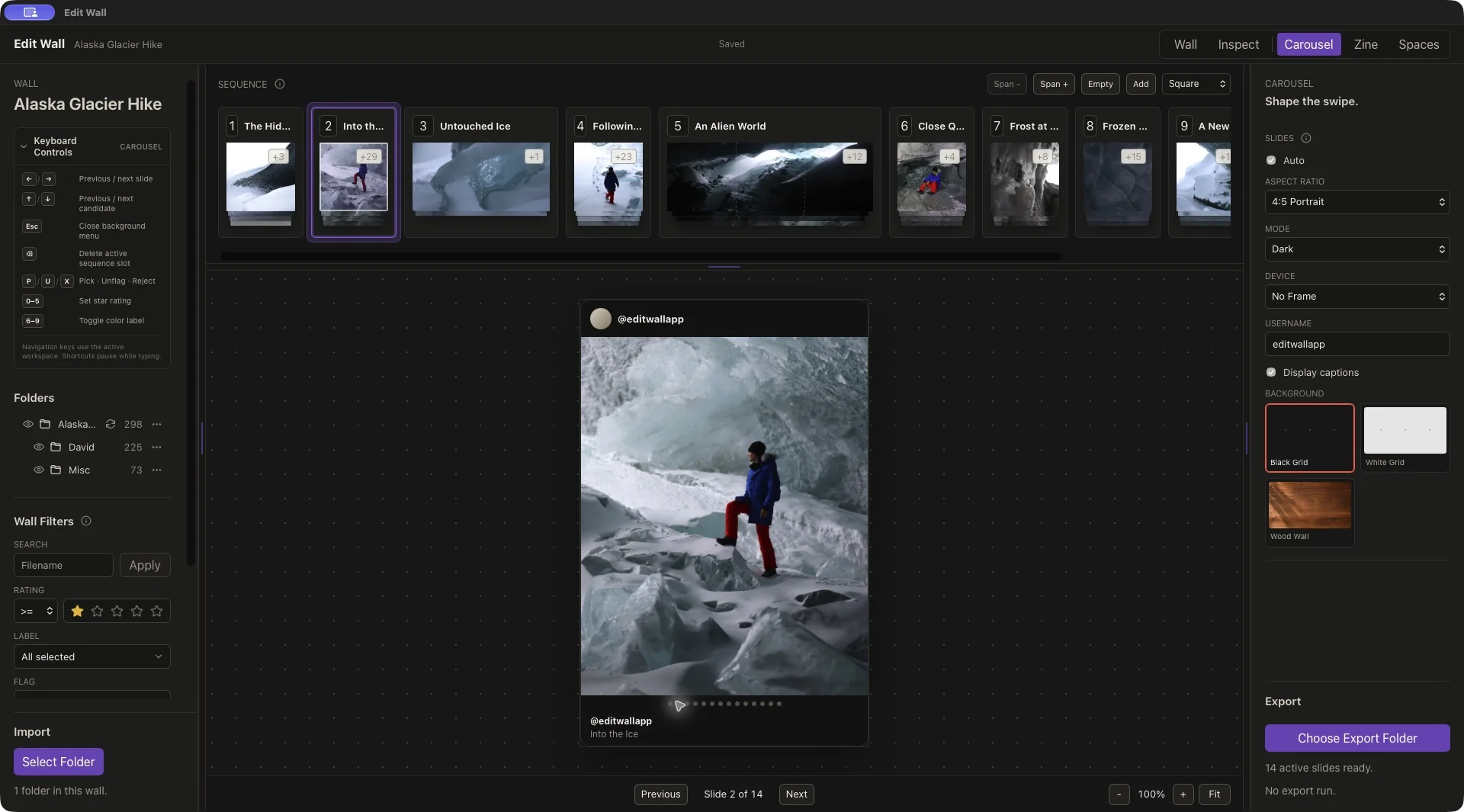
01 / Choose the sequence
Give each photograph a reason to follow the last.
Start in Wall. Use Select Folder to import your local photographs, group related alternatives, and place your chosen groups in the sequence strip. Select a slot and use the Up and Down Arrow keys to compare its candidates. Drag slots to reorder them, or use Shift with the Left or Right Arrow key.
If you are adapting an existing edit, use File → Save As first. We used a separate copy for this guide. Keep the original photo folders available so EditWall can read them when you export.
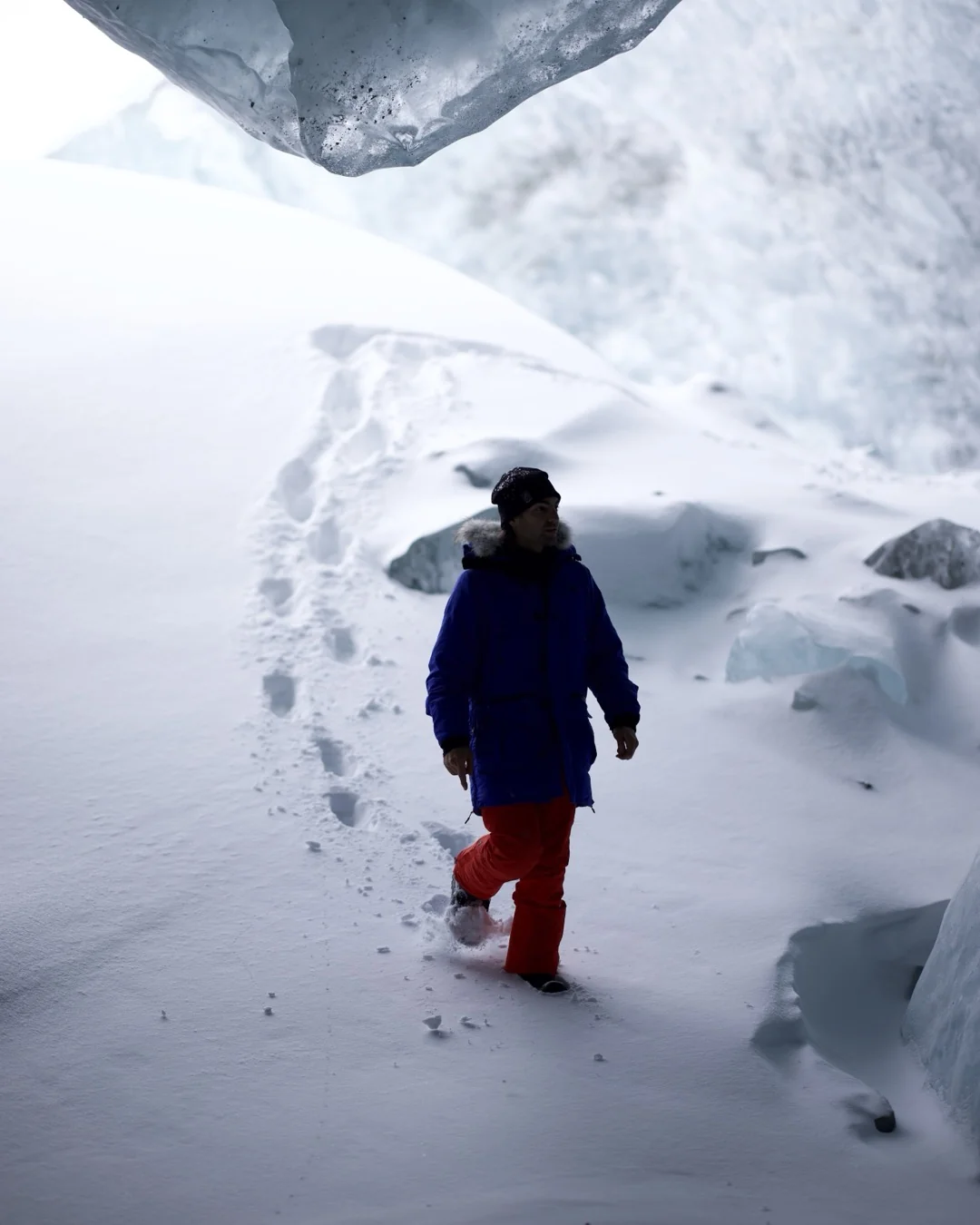
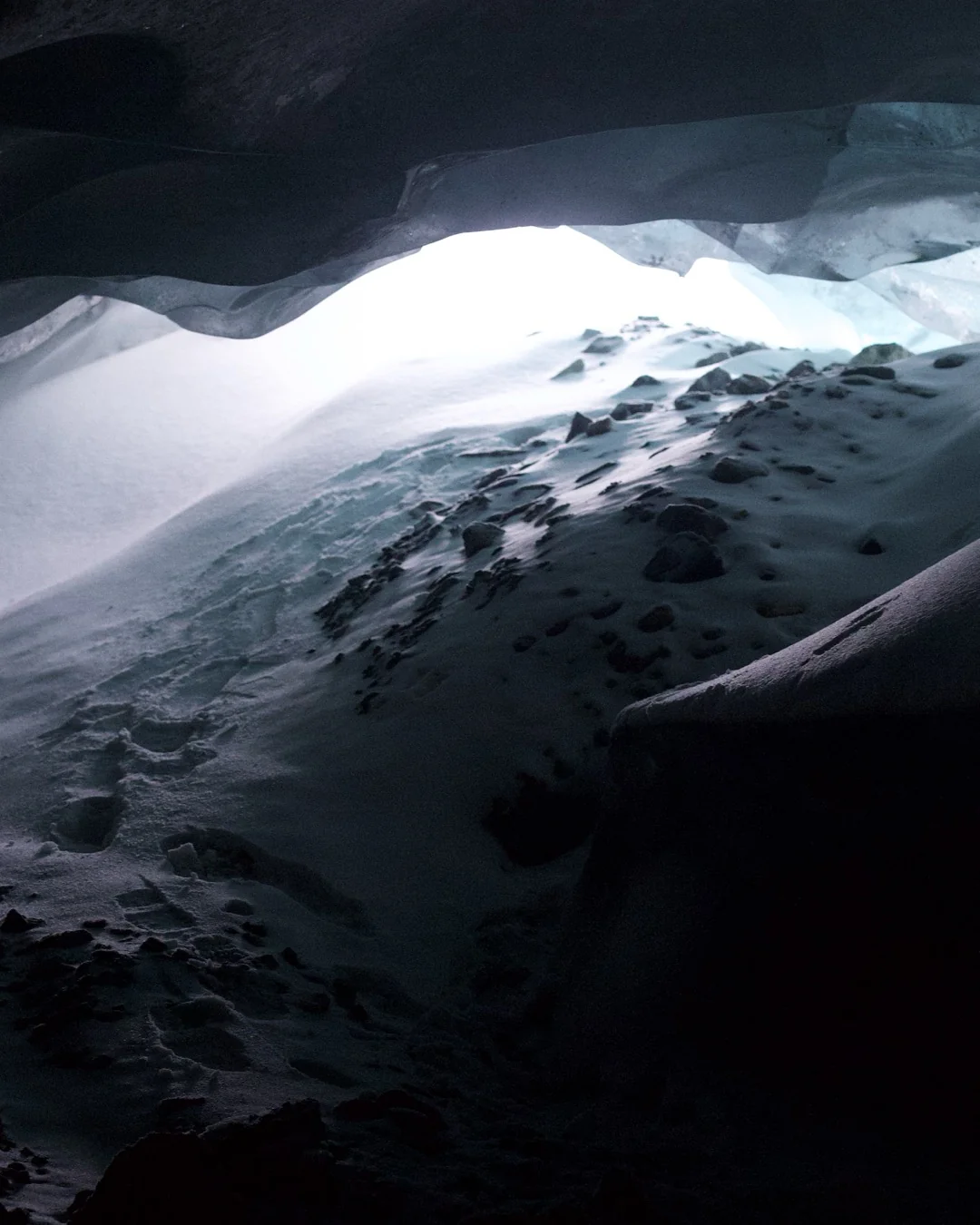
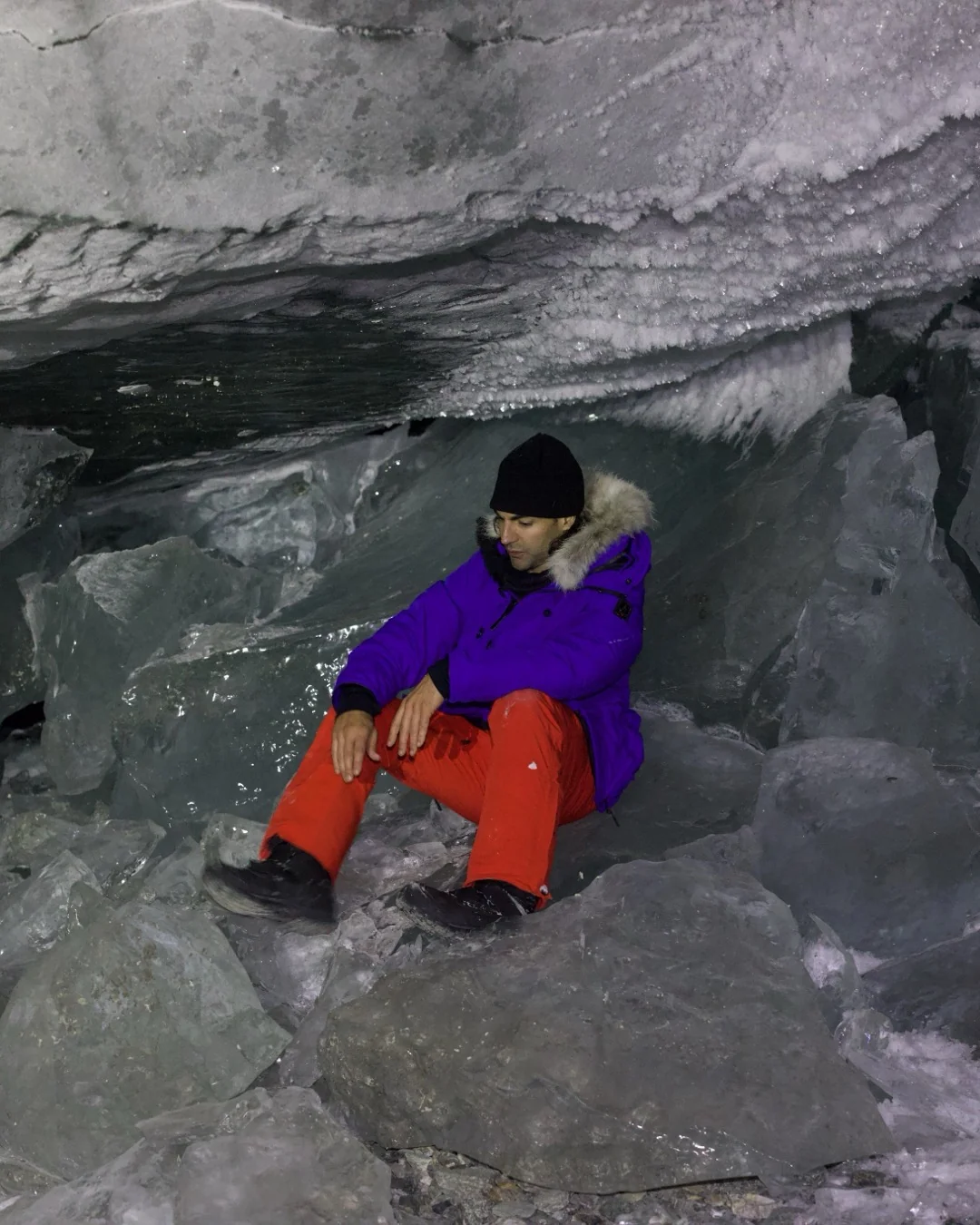
In this edit, “The Hidden Entrance” opens with an invitation; “Into the Ice” introduces a person and a sense of scale. Ice details slow the pace, while “Back in the Open” gives the ending room to breathe. These are ways to read the existing sequence, not a claim about the photographer’s original decision process.
Review the first image carefully: it is the opening slide of the carousel. Unlike the booklet cover arrangement in our zine guide, the carousel follows the sequence from the first slot onward.
02 / Set the format
Choose the frame before judging the crop.
Open Carousel. In the right pane, set Aspect Ratio to 4:5 Portrait and leave Auto enabled. This project shows fourteen active slides. The aspect-ratio control in the sequence strip changes its thumbnails; use the Carousel pane’s setting for the output format.
Our exported files measure 1080 × 1350 pixels. Instagram’s image-resolution guidance includes this size within its supported range. A consistent frame also makes it easier to judge transitions from one slide to the next.
Use Previous and Next, the position dots, or the Left and Right Arrow keys to review the slides. Check faces, feet, and edges that the portrait frame might crop. Return to the sequence to choose an alternative when a photograph does not work in this shape.
For precise color and tonal edits from your RAW editor, bring finished JPEGs into EditWall using our Lightroom workflow guide. RAW support uses embedded previews, so it may not reproduce the rendering you see in another editor.
03 / Shape the swipe
Let a wide photograph unfold.
Select a sequence slot and use Span + or Span − to change how many slides it occupies. A span divides one photograph into consecutive sections. It does not add different photographs to the same slide.
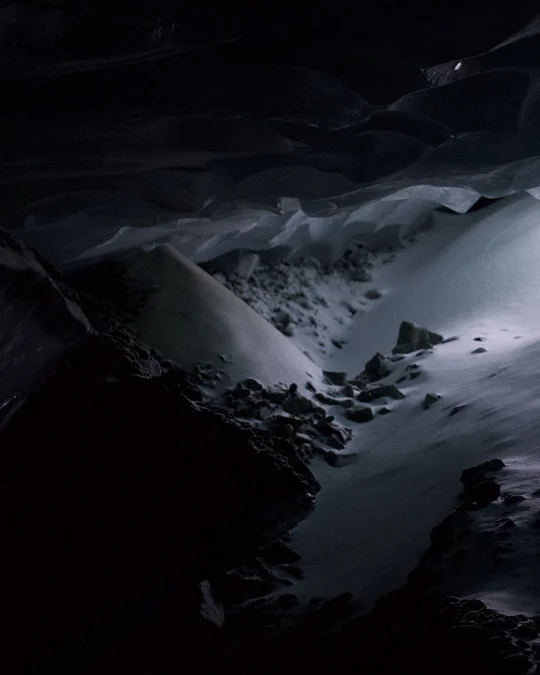
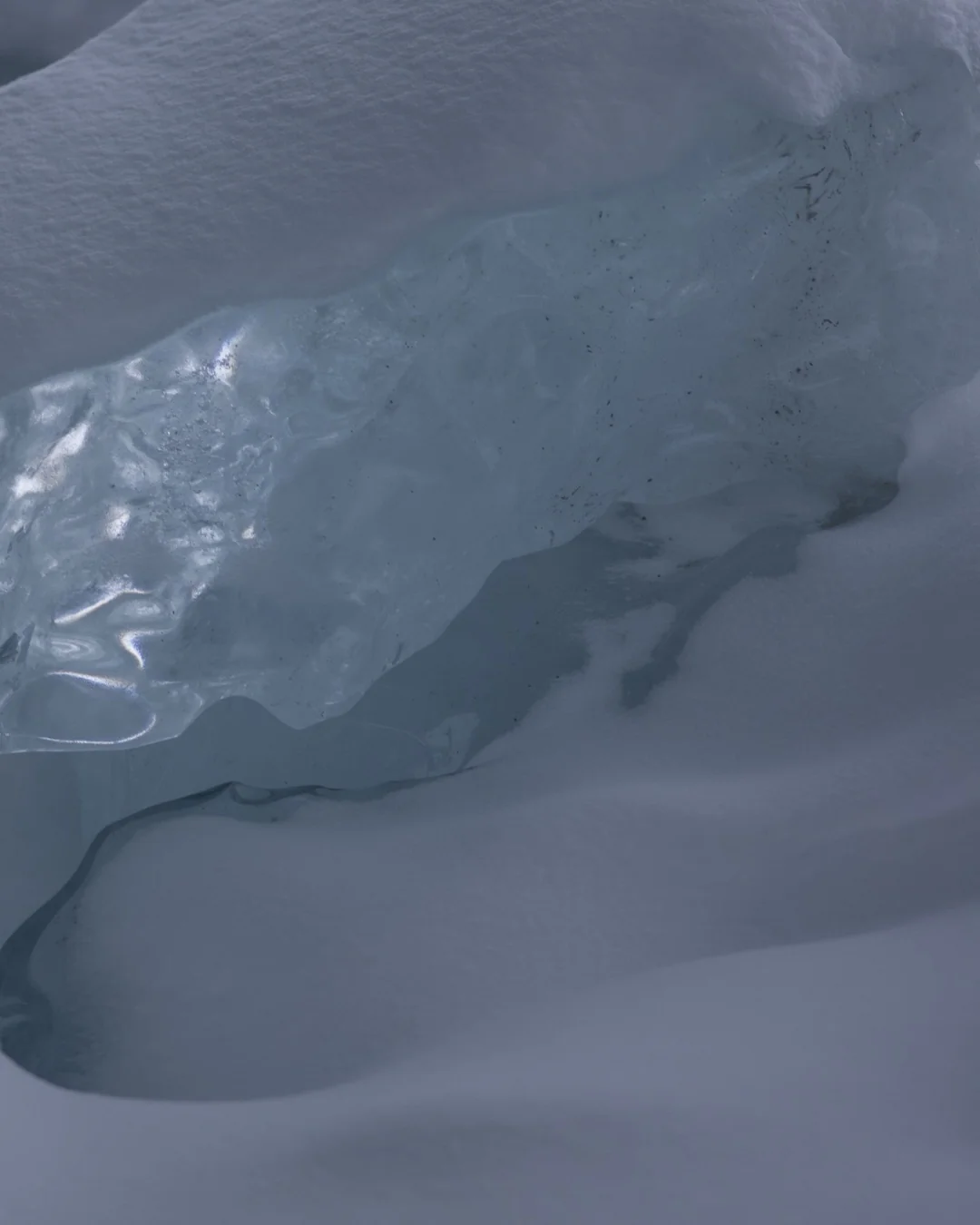
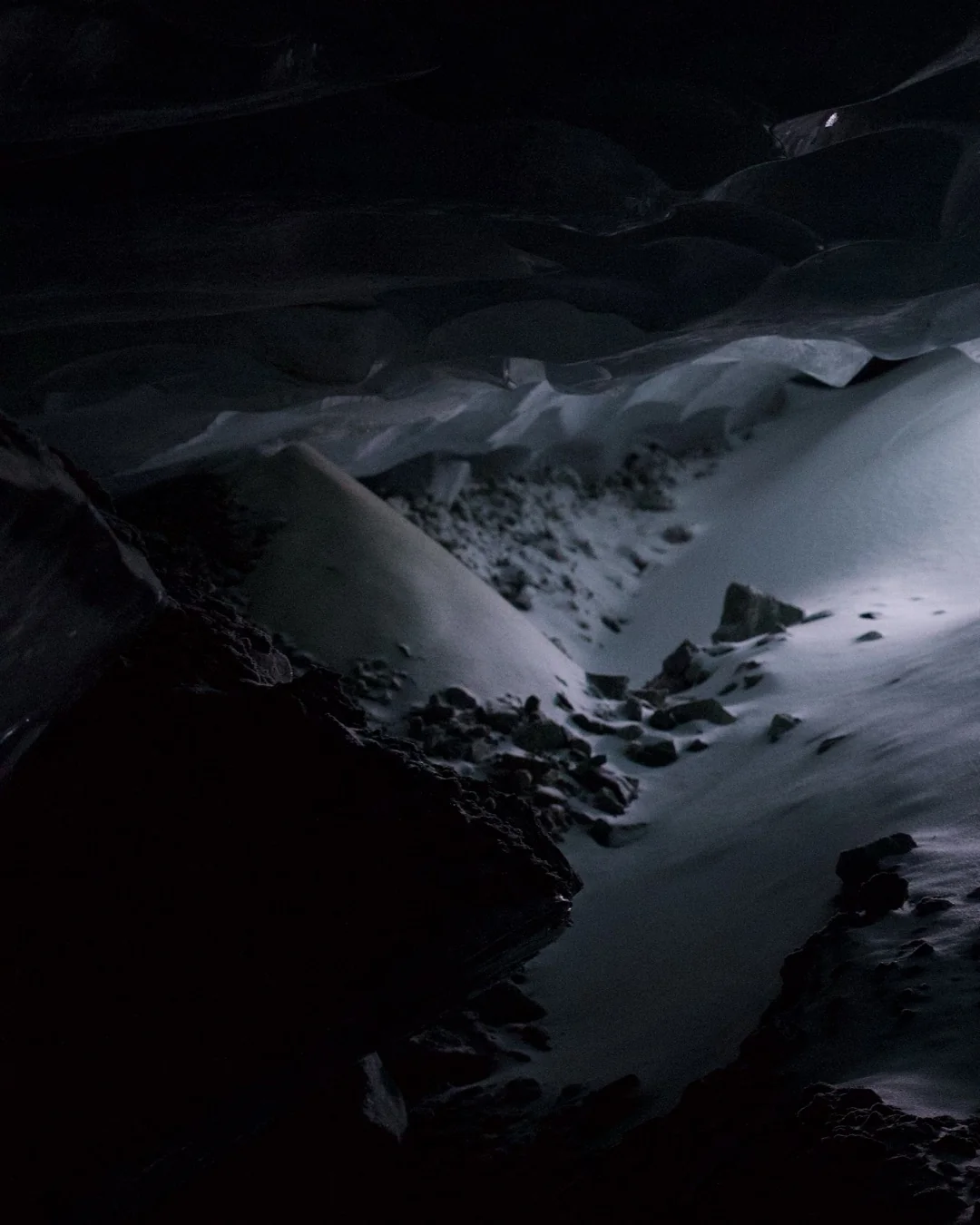
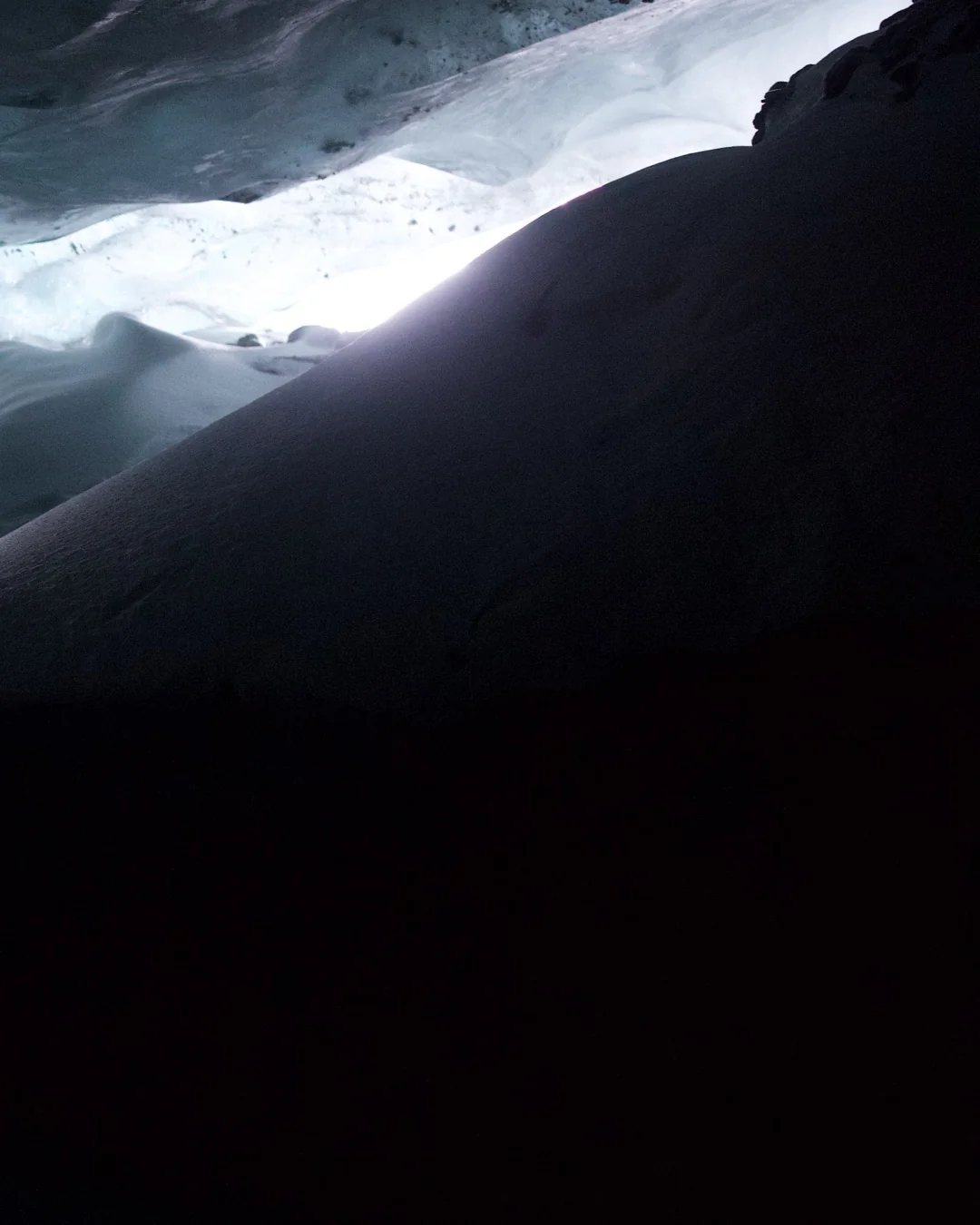
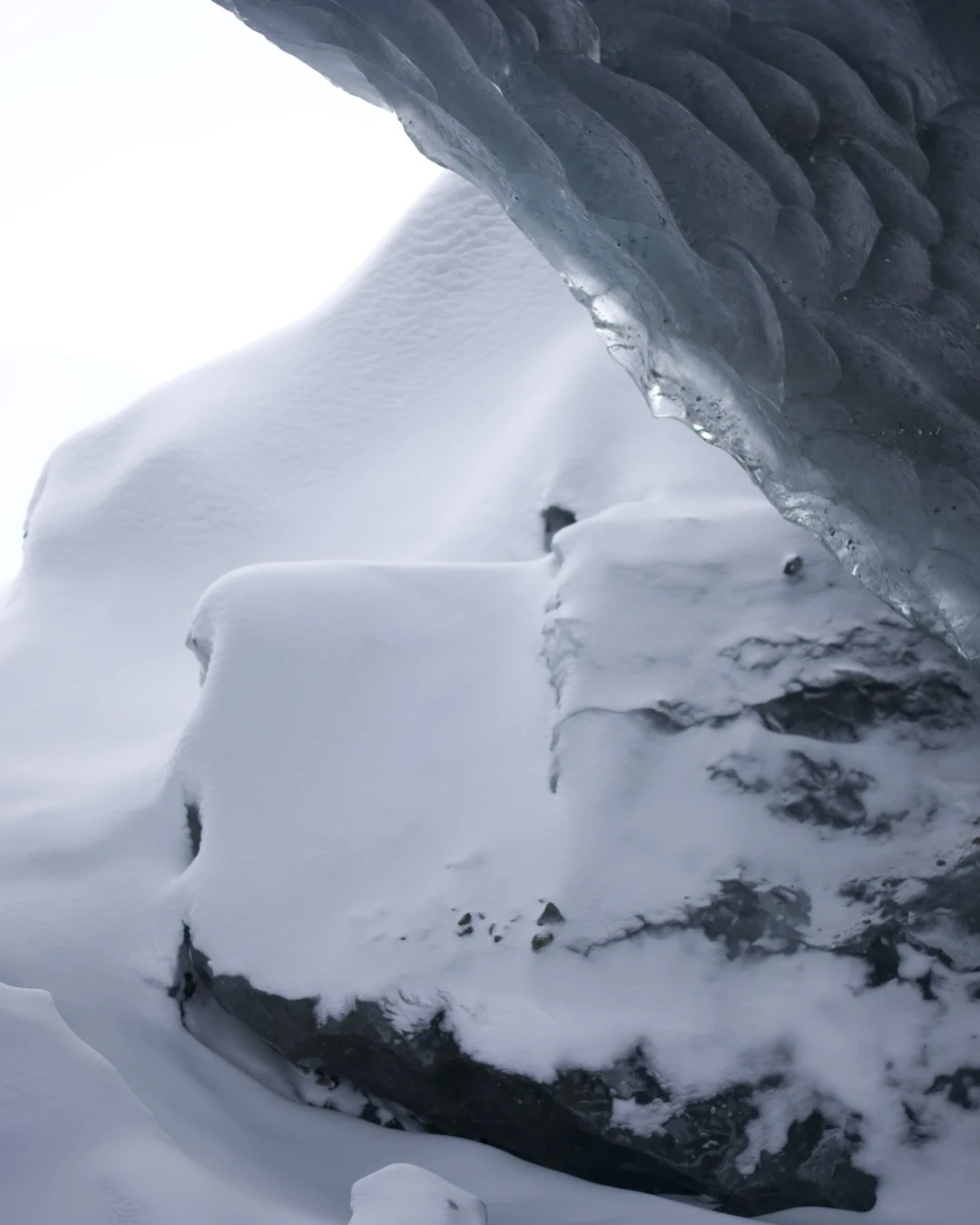
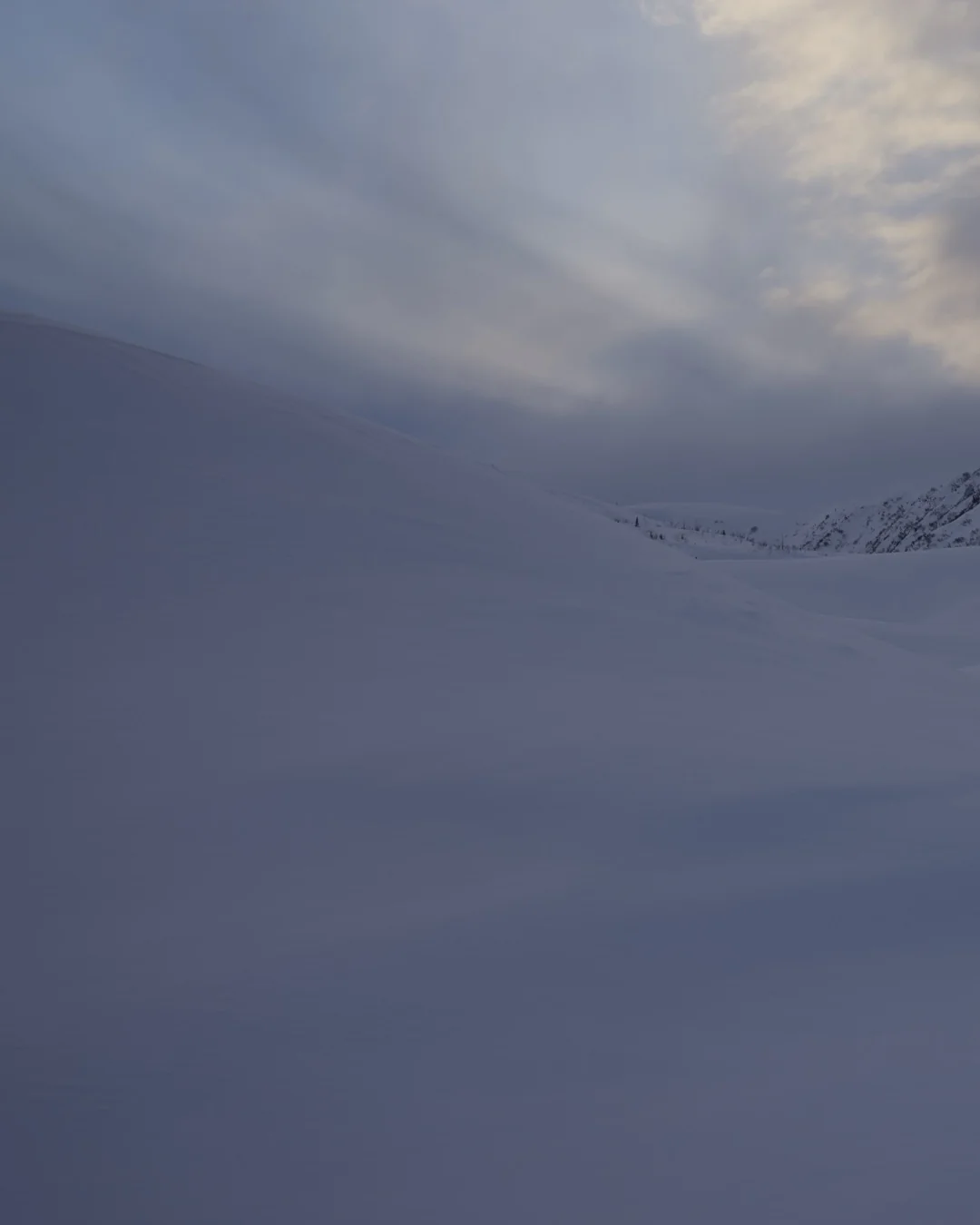
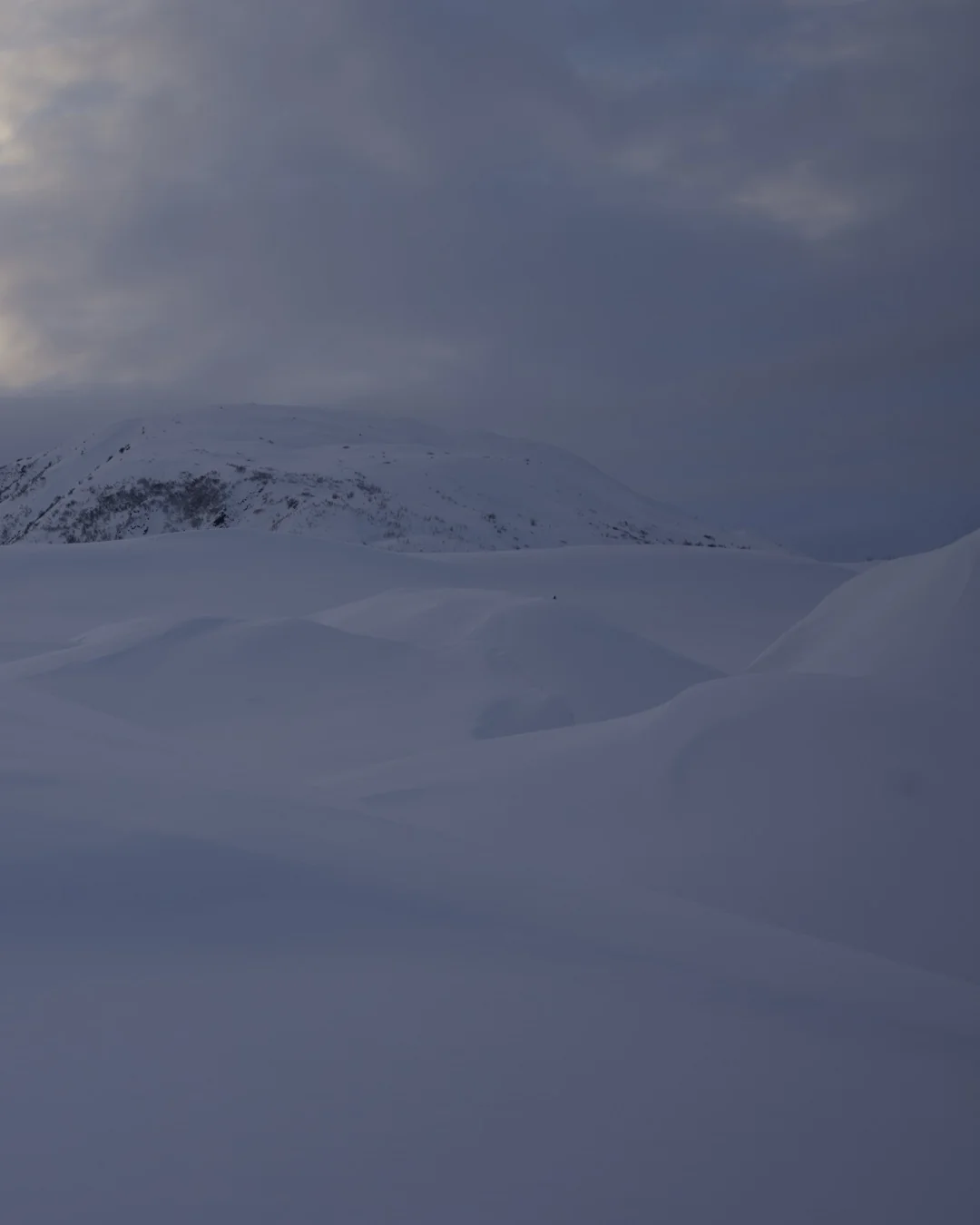
Here, “Untouched Ice” occupies slides 3–4, “An Alien World” occupies slides 6–8, and “Back in the Open” occupies slides 13–14. The three-slide cavern image shifts from darkness toward the opening, then lets the next human moment change the pace.
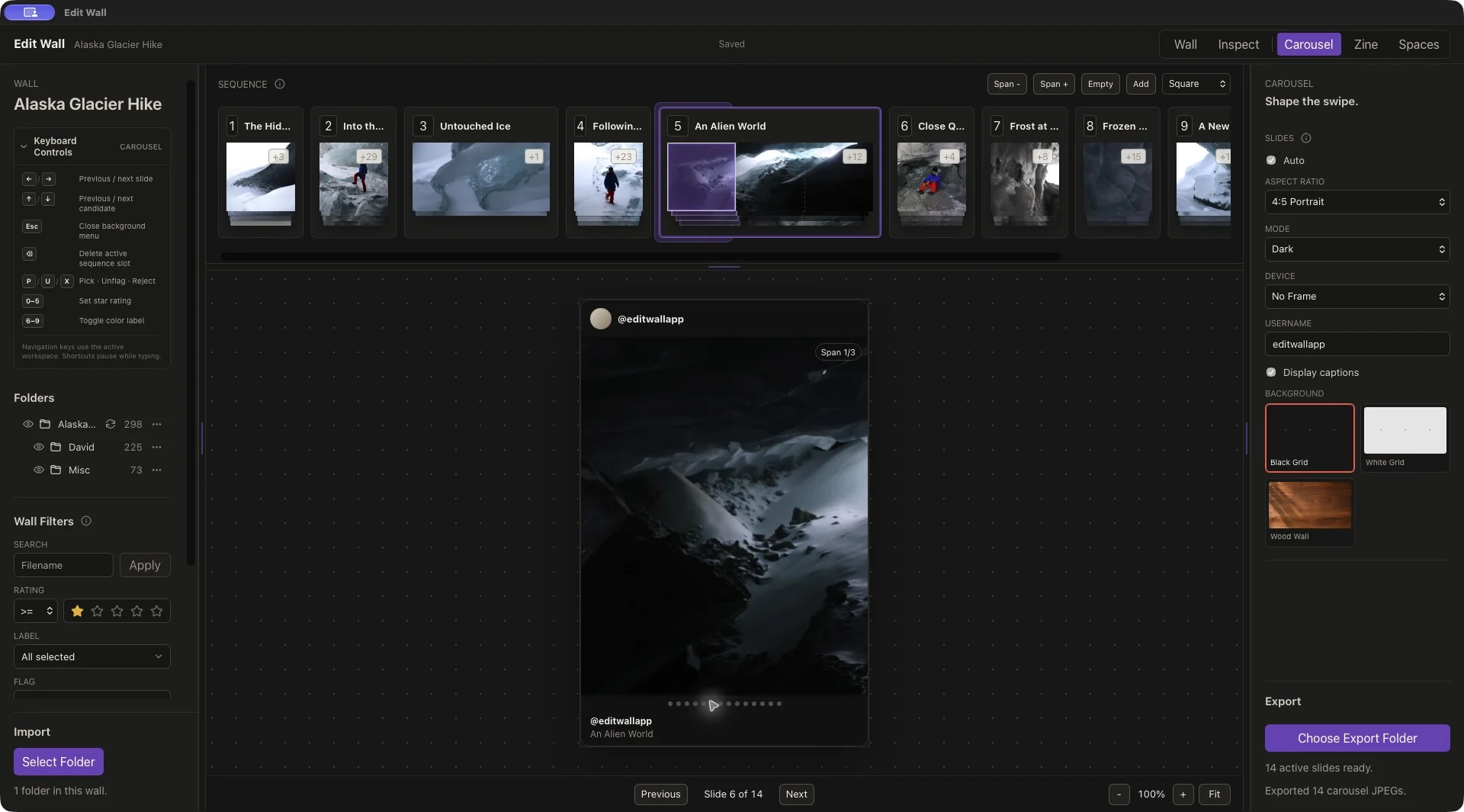
Judge each section on its own as well as alongside its neighbor. Avoid a split through a face or another important detail. If a span adds empty swipes without adding meaning, shorten it.
EditWall supports up to twenty carousel slides. With Auto enabled, a sequence that exceeds that limit needs to be shortened; alternatively, turn Auto off and deliberately choose a smaller slide count. Check the resulting subset before exporting.
04 / Export JPEGs
Make the files, then check the files.
- Choose Export Folder.Select an empty folder for this version of the carousel.
- Review the export dialog.For this example, Aspect Ratio is 4:5 and Layout is 14 active of 14.
- Choose Export JPEGs.Wait for the completion message. Our export reported “14 JPEGs written.”
- Open the exported images in filename order.The numeric prefixes preserve the intended sequence: edit-wall-001-…, edit-wall-002-…, through edit-wall-014-…. Check all fourteen files, including the joins between spanned slides.
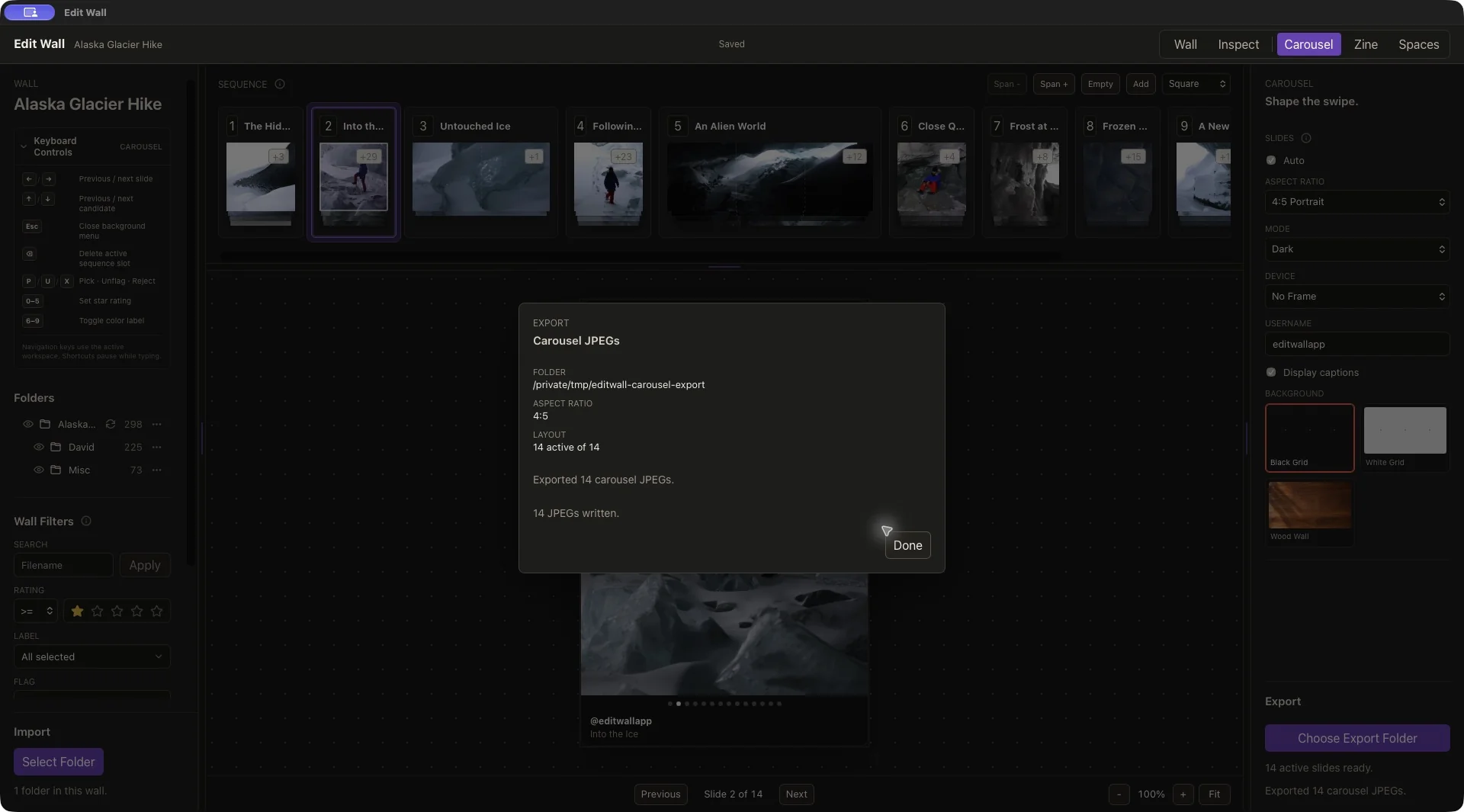
The output contains the photographs and their crops. The simulated profile name, captions, slide counters, device frame, and workspace background are not baked into the JPEGs. Write the post caption and any image descriptions in Instagram.
05 / See the result
One photograph, three consecutive slides.
These are web previews of exported slides 6–8, placed edge to edge to show the continuous cavern image. On Instagram, each is a separate slide.
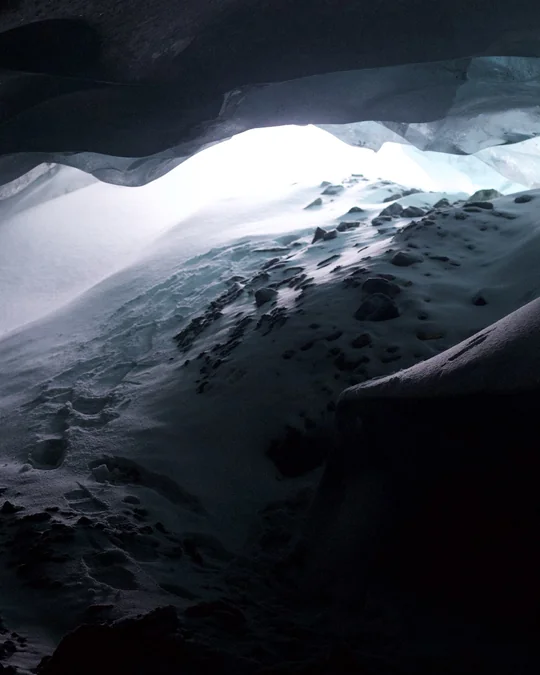
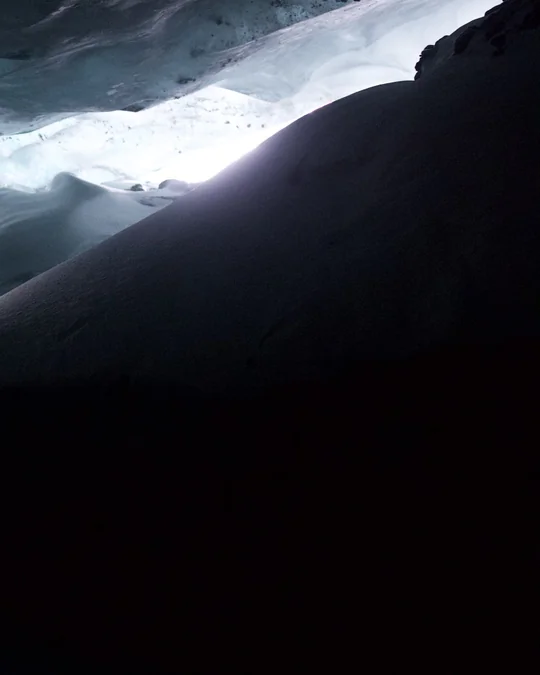
View all 14 exported slides in order
Read left to right, then down. Choose any image to enlarge it. These web previews are converted from the actual JPEG export; the app’s originals are 1080 × 1350 pixels.
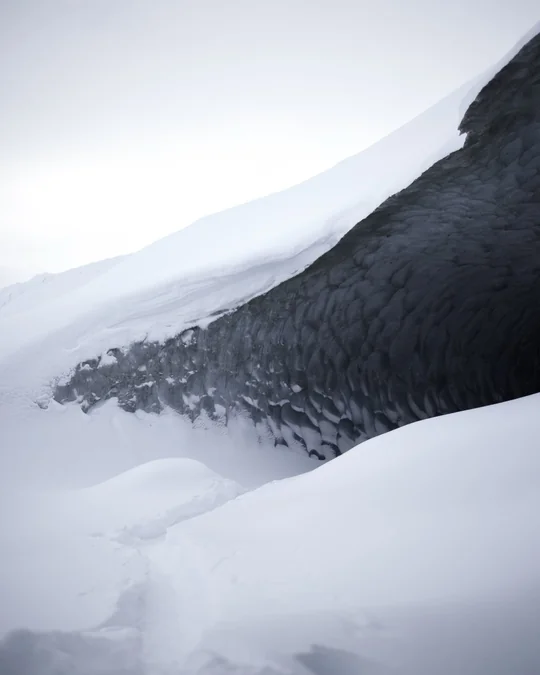
01 The Hidden Entrance 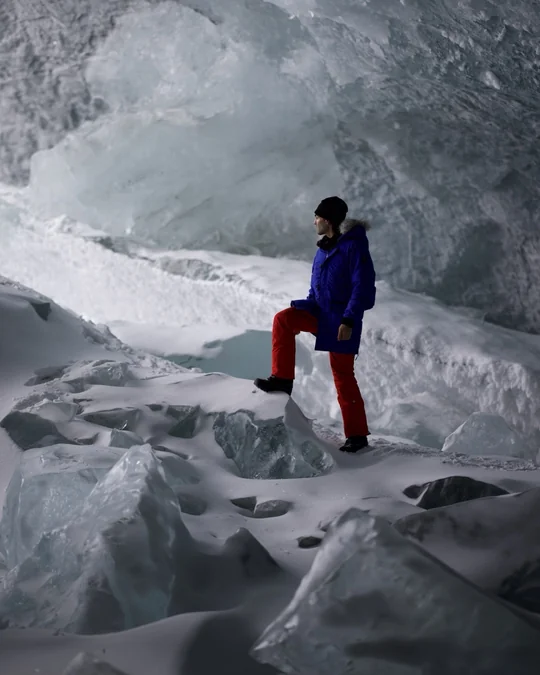
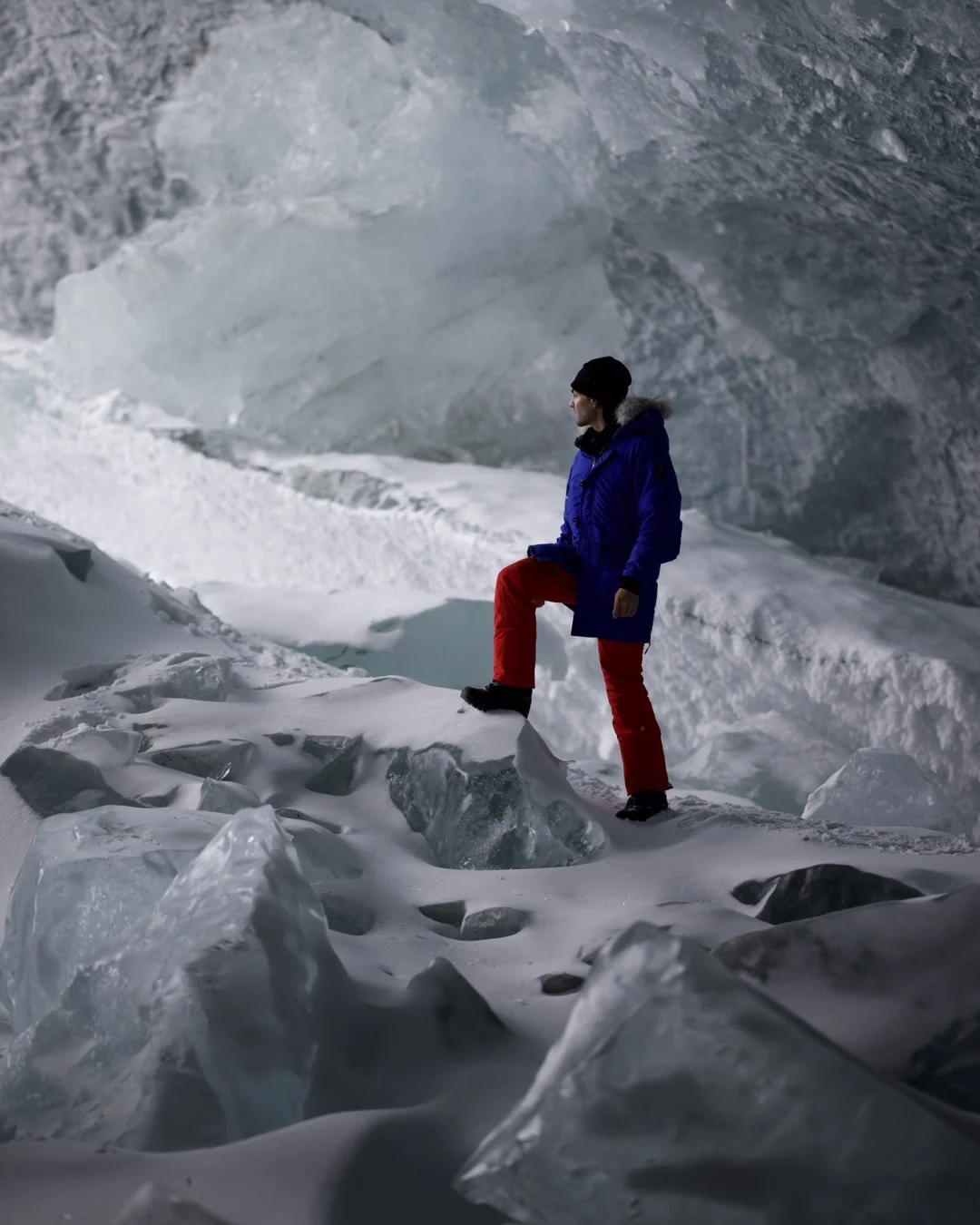
02 Into the Ice 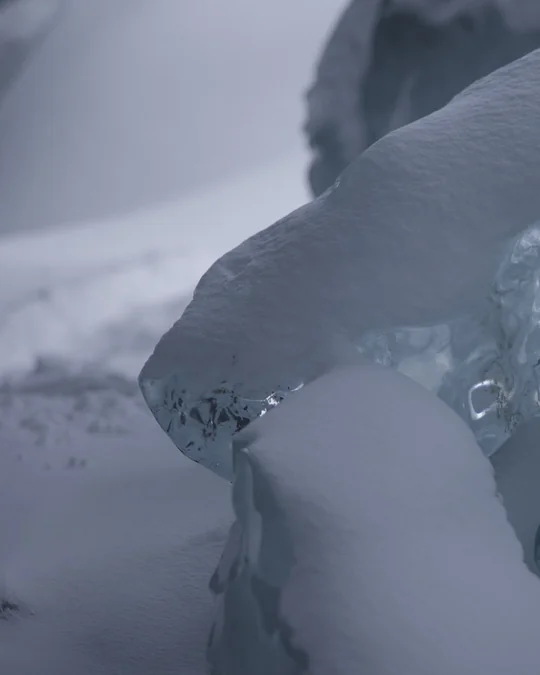
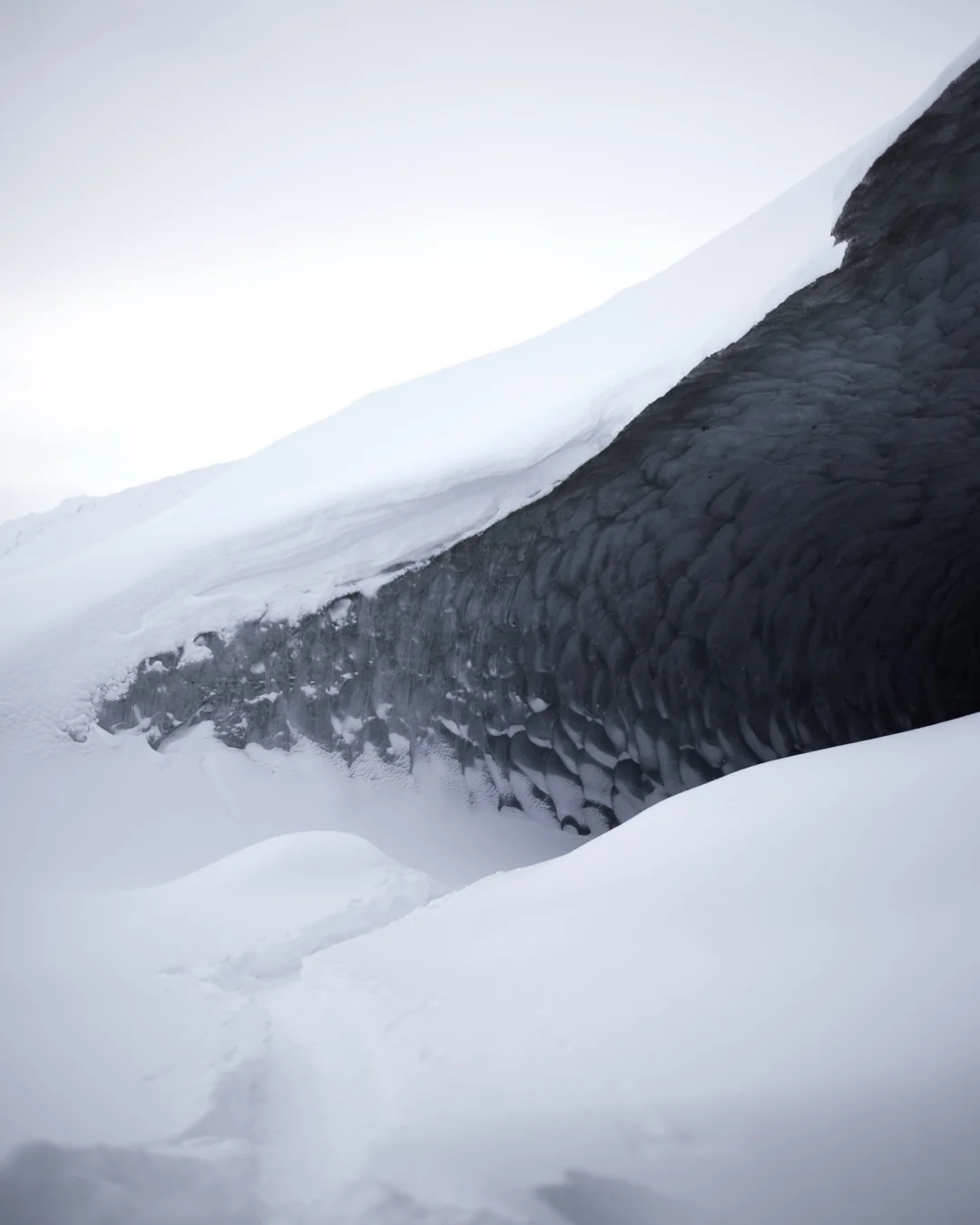
03 Untouched Ice · 1 of 2 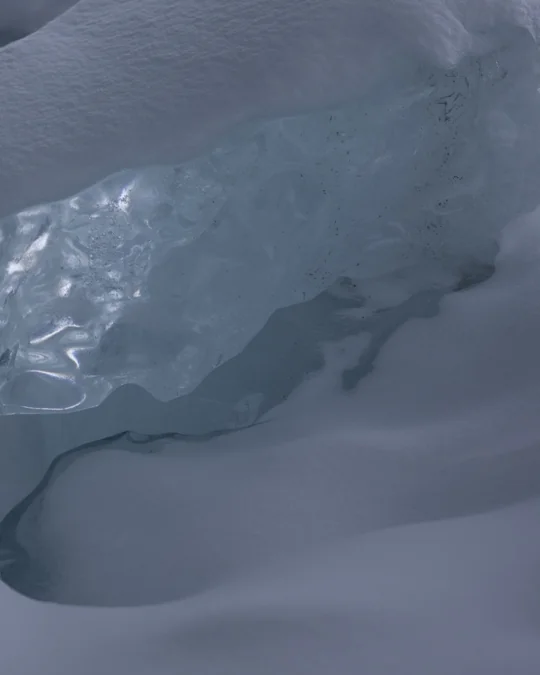
04 Untouched Ice · 2 of 2 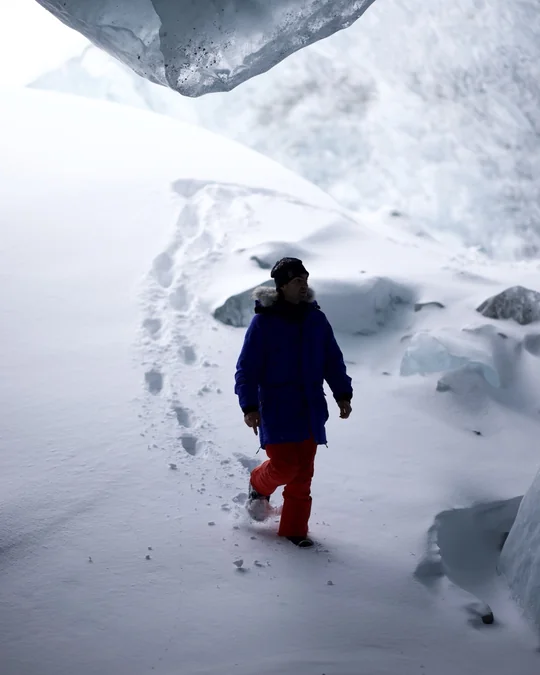
05 Following the Path 06 An Alien World · 1 of 3 07 An Alien World · 2 of 3 08 An Alien World · 3 of 3 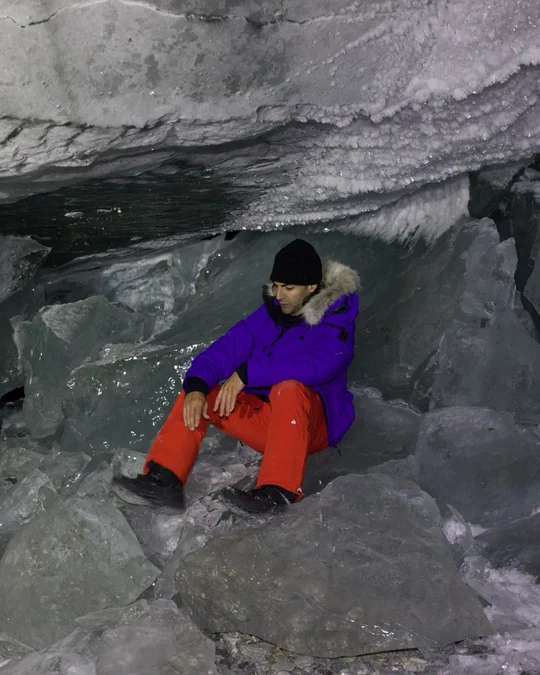
09 Close Quarters 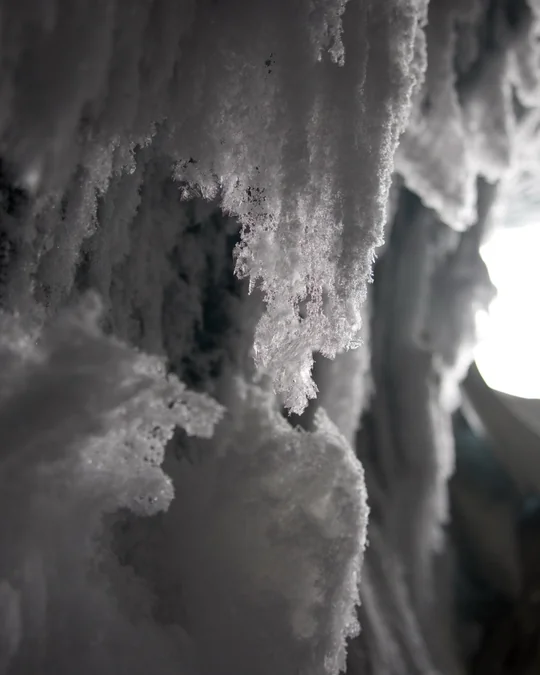
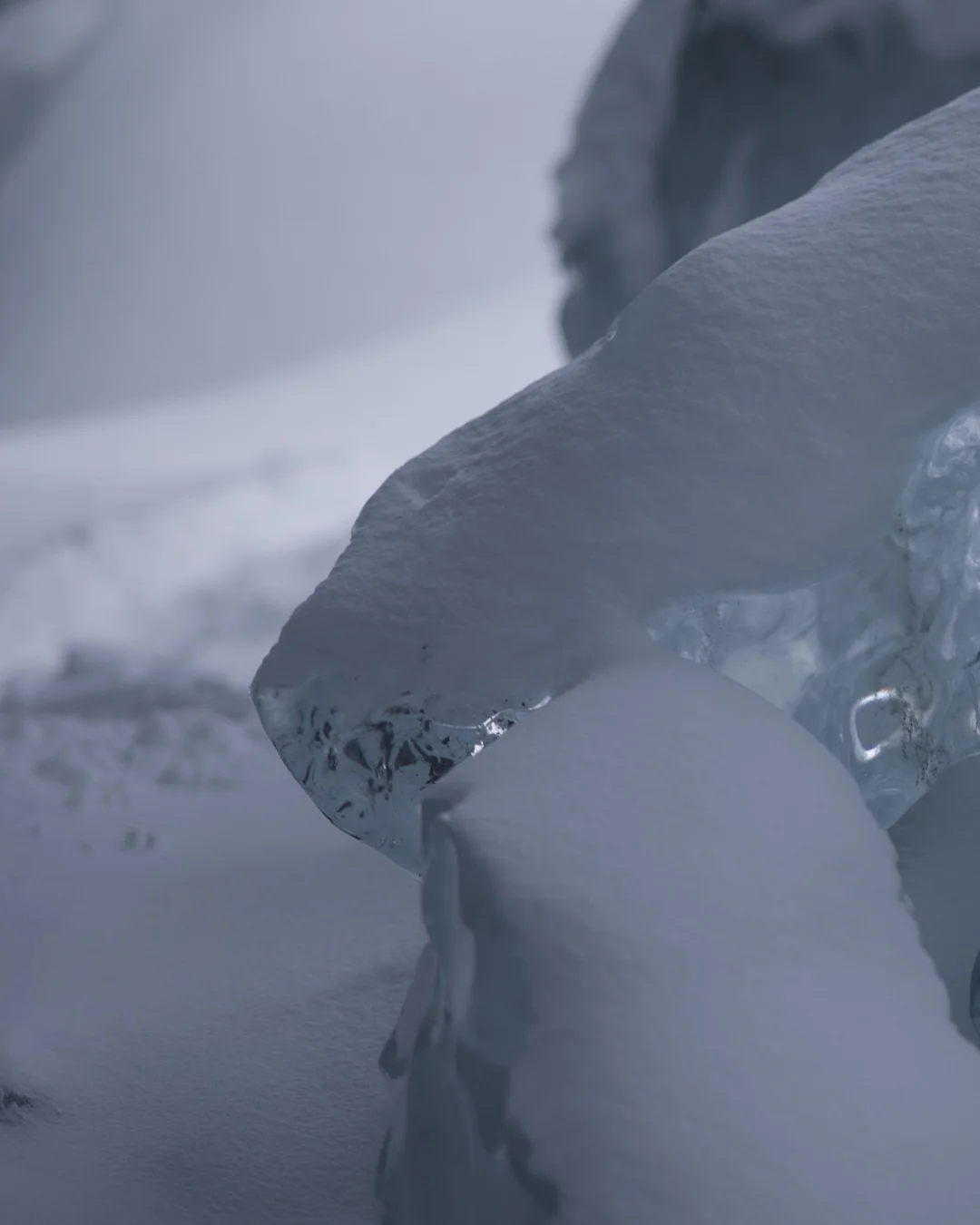
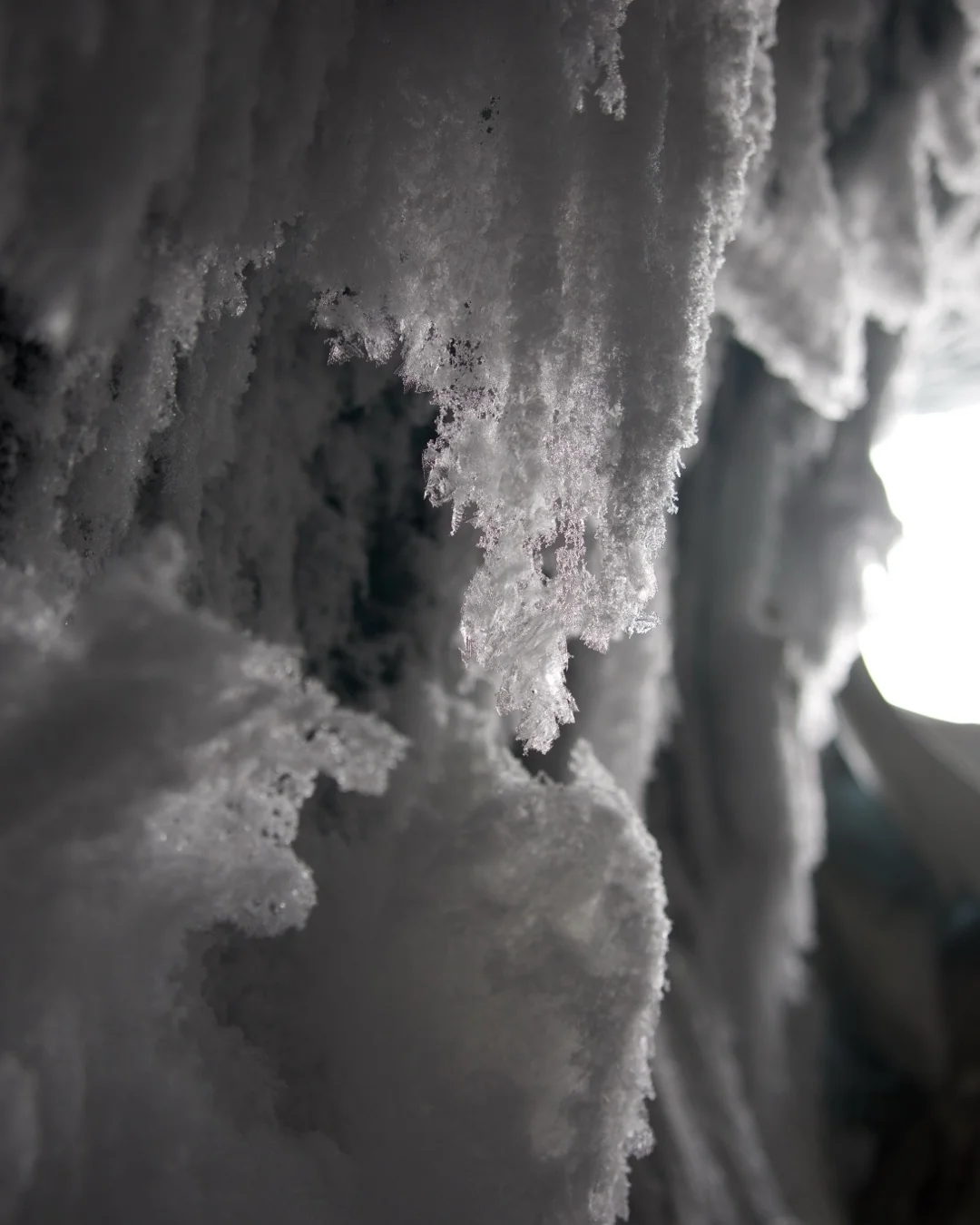
10 Frost at the Edge 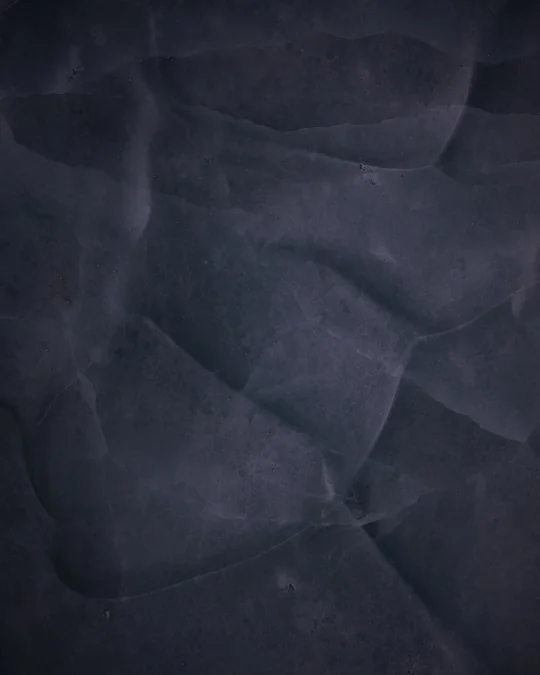
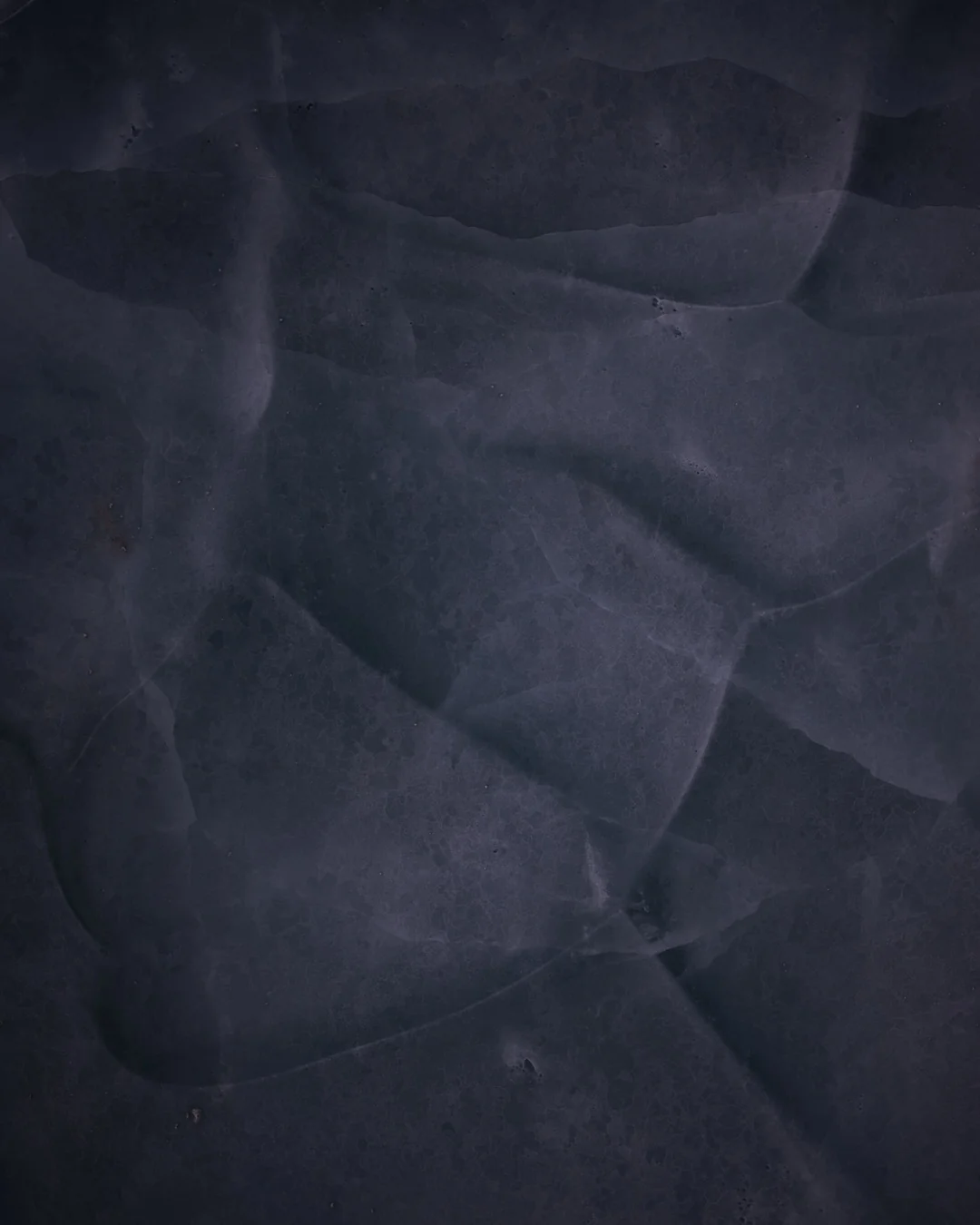
11 Frozen Geometry 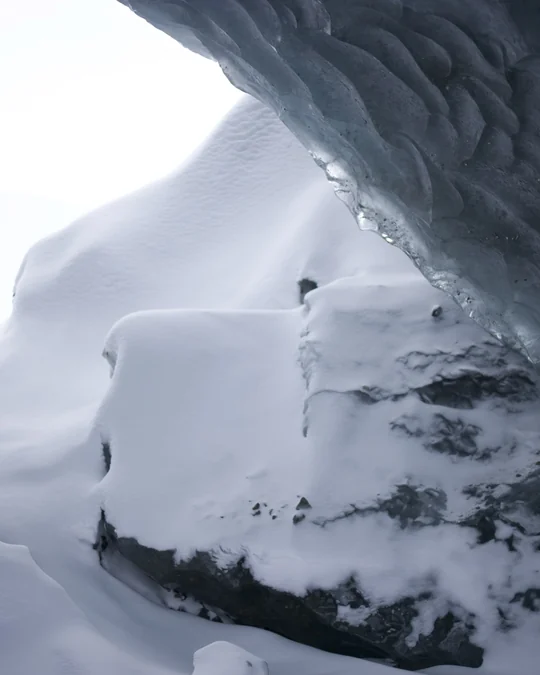
12 A New Planet 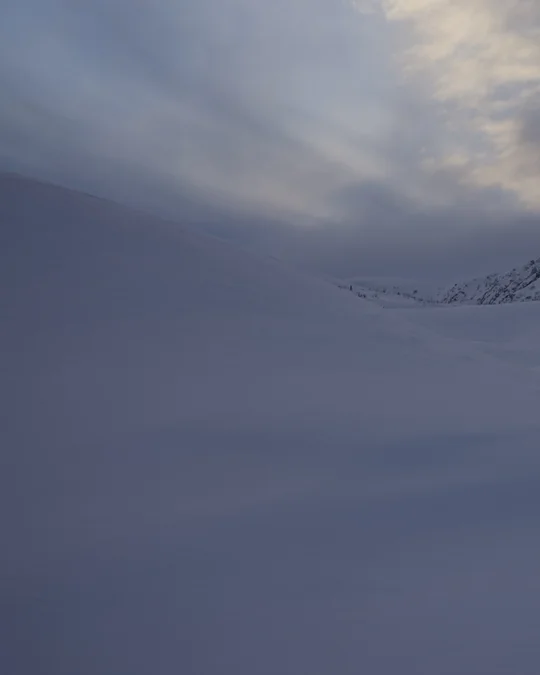
13 Back in the Open · 1 of 2 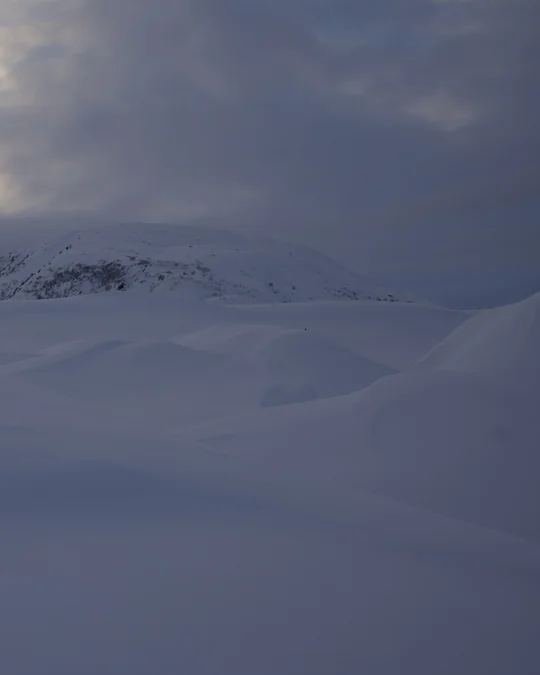
14 Back in the Open · 2 of 2
06 / Post on Instagram
Preserve the sequence through the final upload.
On Instagram’s website, choose Create → Post → Select from computer. Add the exported JPEGs as a multi-image post. Check the numbered file order, select the portrait orientation, and review every crop before continuing. Instagram’s desktop carousel instructions currently allow up to twenty photos and videos and apply the chosen orientation across the post.
Add your caption and image descriptions, preview the complete sequence, and share when ready. Avoid cropping the spanned sections differently from one another: their edges need to align. The first image should still be the opening you chose in EditWall.
- Are all fourteen exported slides included in the intended order?
- Do the two- and three-slide images join without missing sections?
- Has Instagram preserved the intended portrait crop?
- Does the opening invite a swipe, and does the ending feel complete?
Instagram instructions checked October 26, 2026. We verified the EditWall export and the files shown here; this example was not posted to Instagram as part of preparing the guide.
Take the same edit somewhere else.
Follow the Alaska Glacier Hike zine guide to see how page turns change the same sequence, or review all export formats and Mac requirements.