
One hike. Ten image choices.
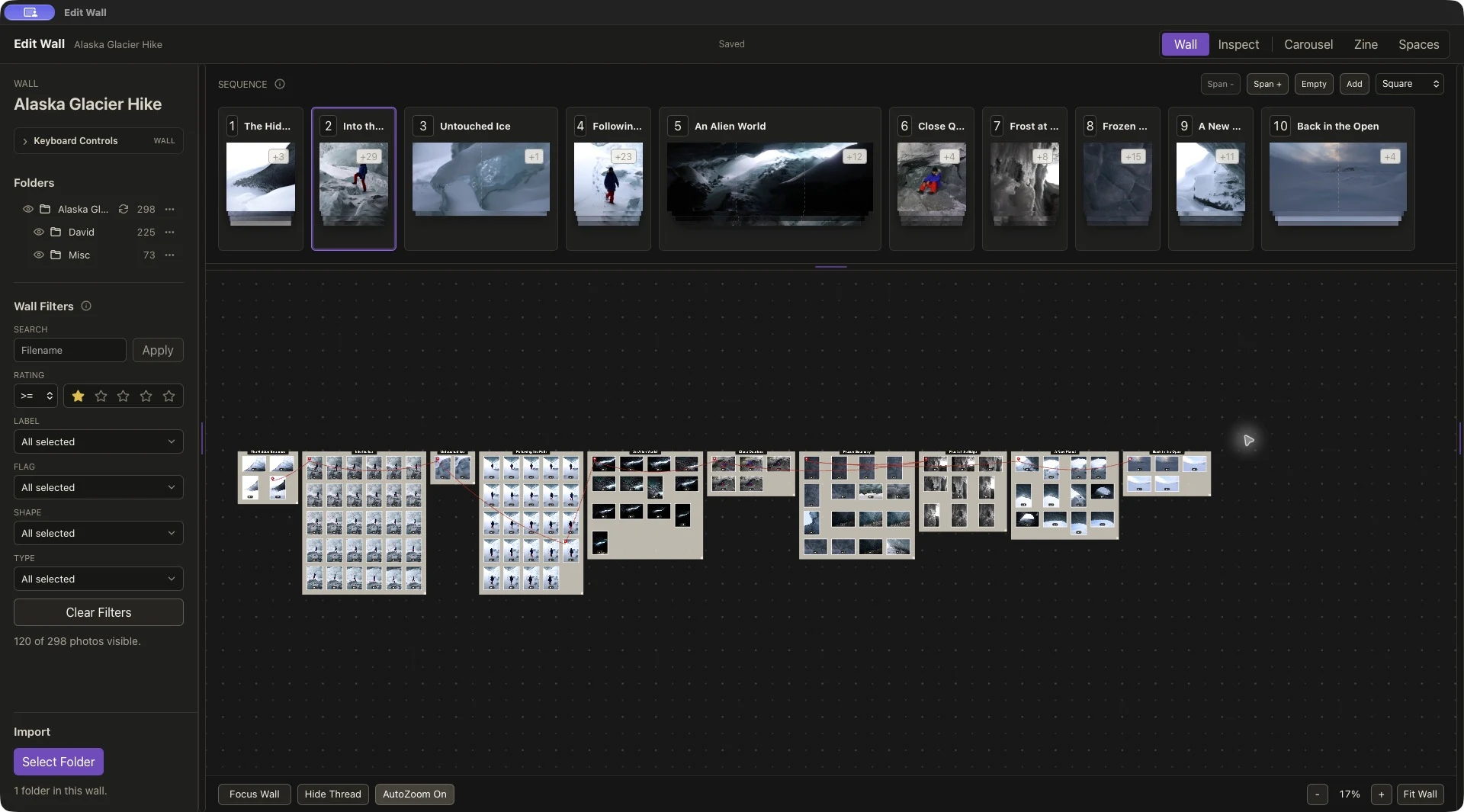
We’re using the existing “Alaska Glacier Hike” wall, also featured in our video walkthrough. Its ten named groups move between snowy entrances, people inside the glacier, ice details, and the open landscape. Each sequence slot holds a chosen photograph while keeping alternatives close by.
This guide reads the existing edit and shows how to use the same process on your photographs. It is not a reconstruction of every decision made during the shoot or the original edit.
01 / Gather
Start with a story you can finish.
Choose a manageable subject: a walk, a place, a person, or a recurring visual idea. For this example, the changing scale of the glacier gives us a useful question: how can the sequence move between the human experience and the ice around it?
In Wall, choose Select Folder to bring in your local photographs. Keep the source folder available, then save a .wall project. If you are experimenting with an existing edit, use File → Save As to make a separate project first.
Use ratings and filters to narrow the working set. The screenshot shows a one-star minimum filter; that is a working selection, not a requirement for your zine. Clear the filters when you need to reconsider a frame that has disappeared from view.
02 / Group
Give each group a job in the story.
Select related photographs on the wall and choose Create Group. Keep near-duplicates together, then name each group for the role it might play. “Into the Ice” contains alternatives for a human moment; “Frozen Geometry” collects abstract ice forms.
Group by what a photograph contributes, as well as by when it was taken. A wide view can establish a place, a person can give it scale, and a close detail can slow the reader down. Keeping alternatives in a group lets you make those choices without discarding the other frames.
03 / Compare
Choose the frame that earns its place.
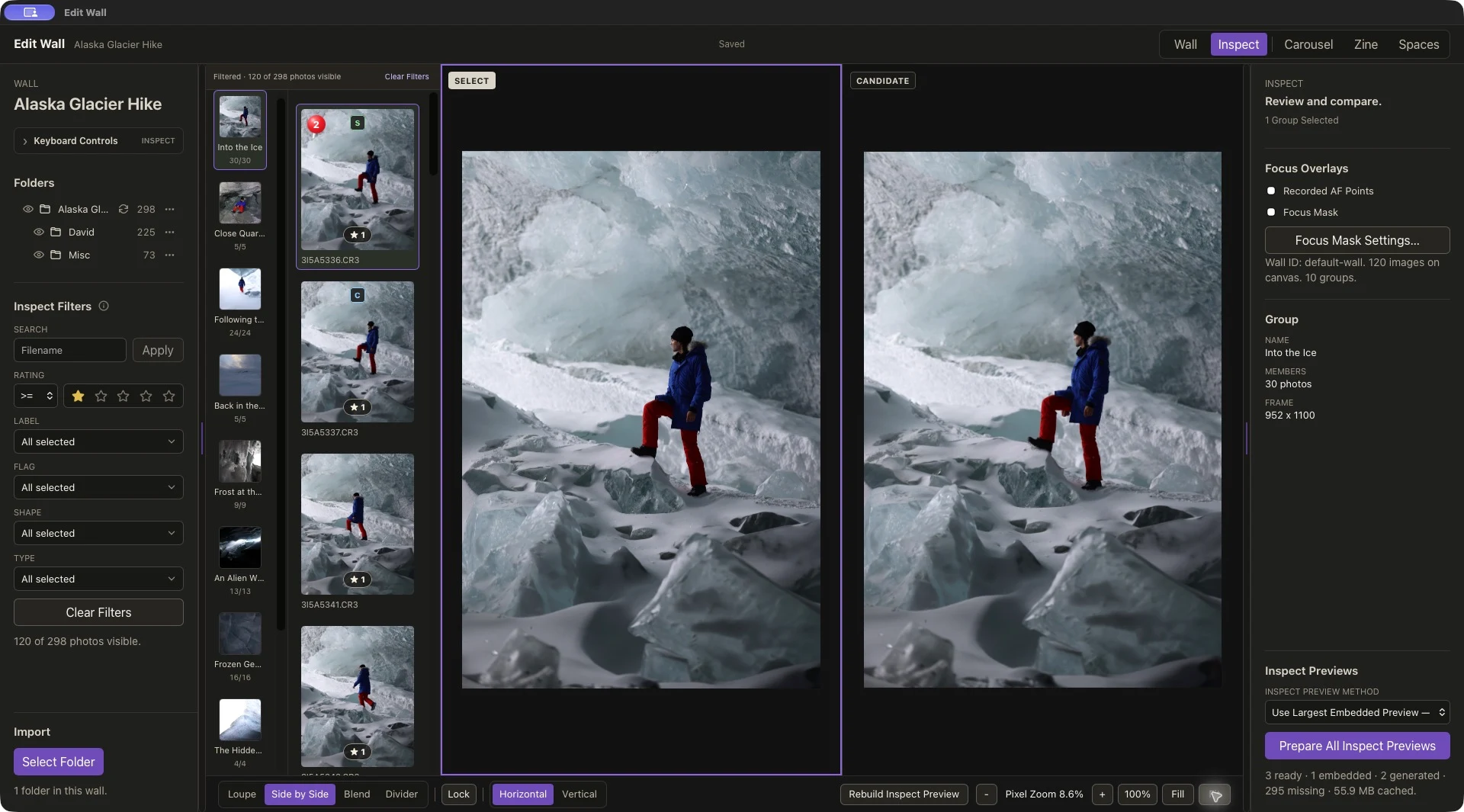
Open Inspect, select a group, and choose Side by Side to compare the Select and Candidate. Use Fit to see the whole composition, then inspect detail when sharpness or expression matters.
In “Into the Ice,” the two frames below are very similar. Look at the hiker’s posture, the space around the figure, and the relationship between the red trousers and the pale ice. The useful question is not just “Which is sharper?” but “Which makes the next image more interesting?”
Keep one active candidate for each sequence position. An alternative can remain in its group even if it does not enter the final sequence. Try replacing a frame before adding another near-duplicate: ten different contributions often read more clearly than ten repetitions of the same moment.
04 / Sequence
Build a rhythm, then test the transitions.
Use Add in the sequence strip to create a slot, then drop a group or selected photographs into it. Drag slots to reorder them. With a slot selected, Shift + Left/Right Arrow moves it, and Up/Down Arrow cycles its candidates.
The current wall’s ten choices give us this progression. These are sequence-strip positions; check the separate cover placement in Zine before treating them as reading order.
- The Hidden EntranceA snowy threshold introduces the place.
- Into the IceA figure brings human scale and a bright color accent.
- Untouched IceA close view pauses the action and changes scale.
- Following the PathThe figure carries movement back into the edit.
- An Alien WorldA broad cave view opens up the space.
- Close QuartersA closer human moment brings the scale down again.
- Frost at the EdgeIce detail shifts attention toward texture.
- Frozen GeometryAbstract forms extend that quieter passage.
- A New PlanetA brighter opening changes the mood.
- Back in the OpenThe open landscape gives the interior sequence a release.
Read through the sequence without stopping to judge individual photographs. Then test one change at a time: swap two neighbors, replace one candidate, or remove a repetition. Watch for unintended jumps in brightness, repeated compositions, and changes of scale that feel abrupt.
05 / Pace the spreads
Make the page turn part of the edit.
Open Zine and choose a spread size and orientation. This example uses Letter, Landscape. The size refers to the whole unfolded sheet: 11 × 8.5 inches here, making a folded page 5.5 × 8.5 inches.
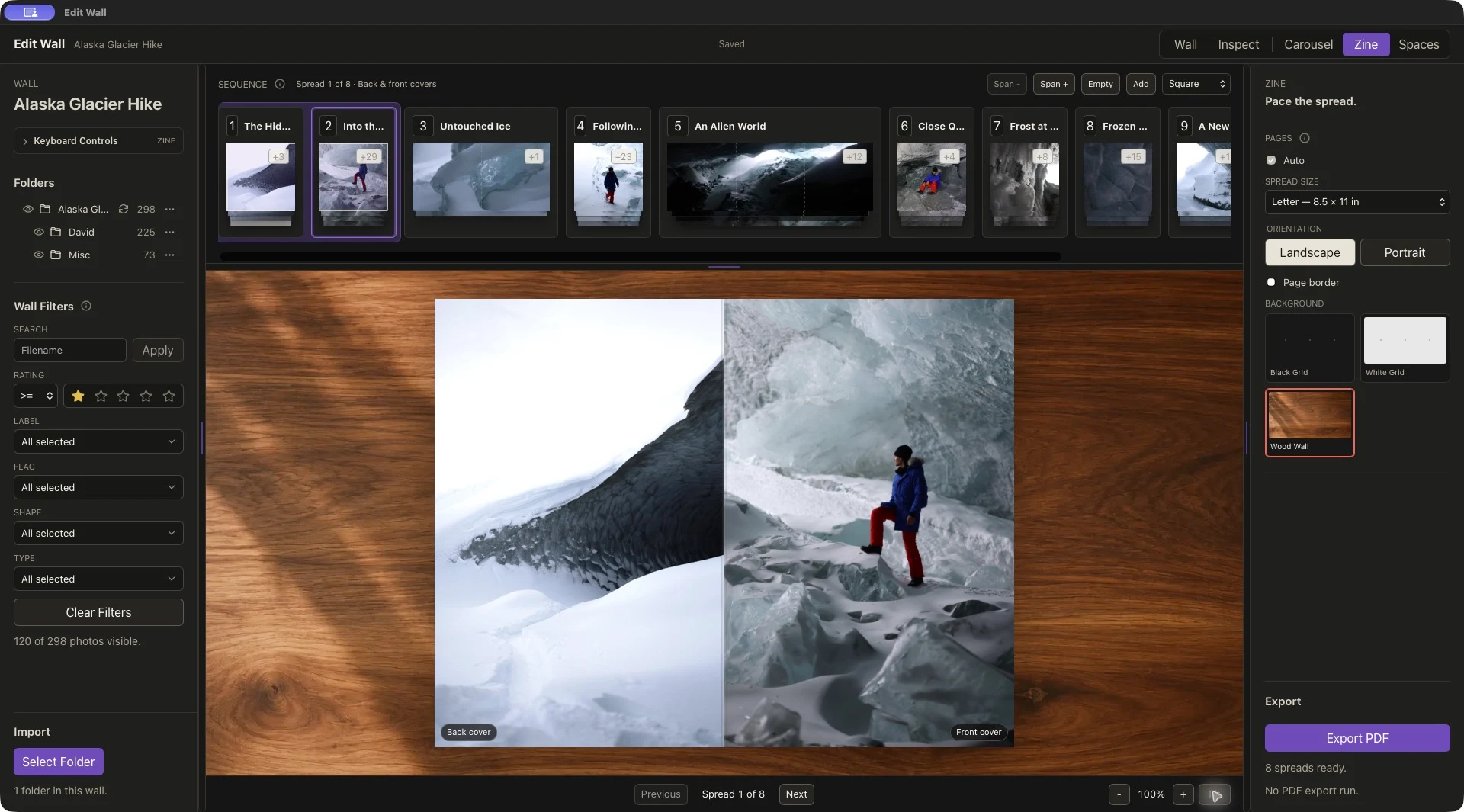
Check the covers first. In this project, the first preview shows “The Hidden Entrance” on the back cover at left and “Into the Ice” on the front cover at right. The first sequence-strip image is therefore not the first image a reader sees. Reorder your choices if you want a different invitation into the booklet.
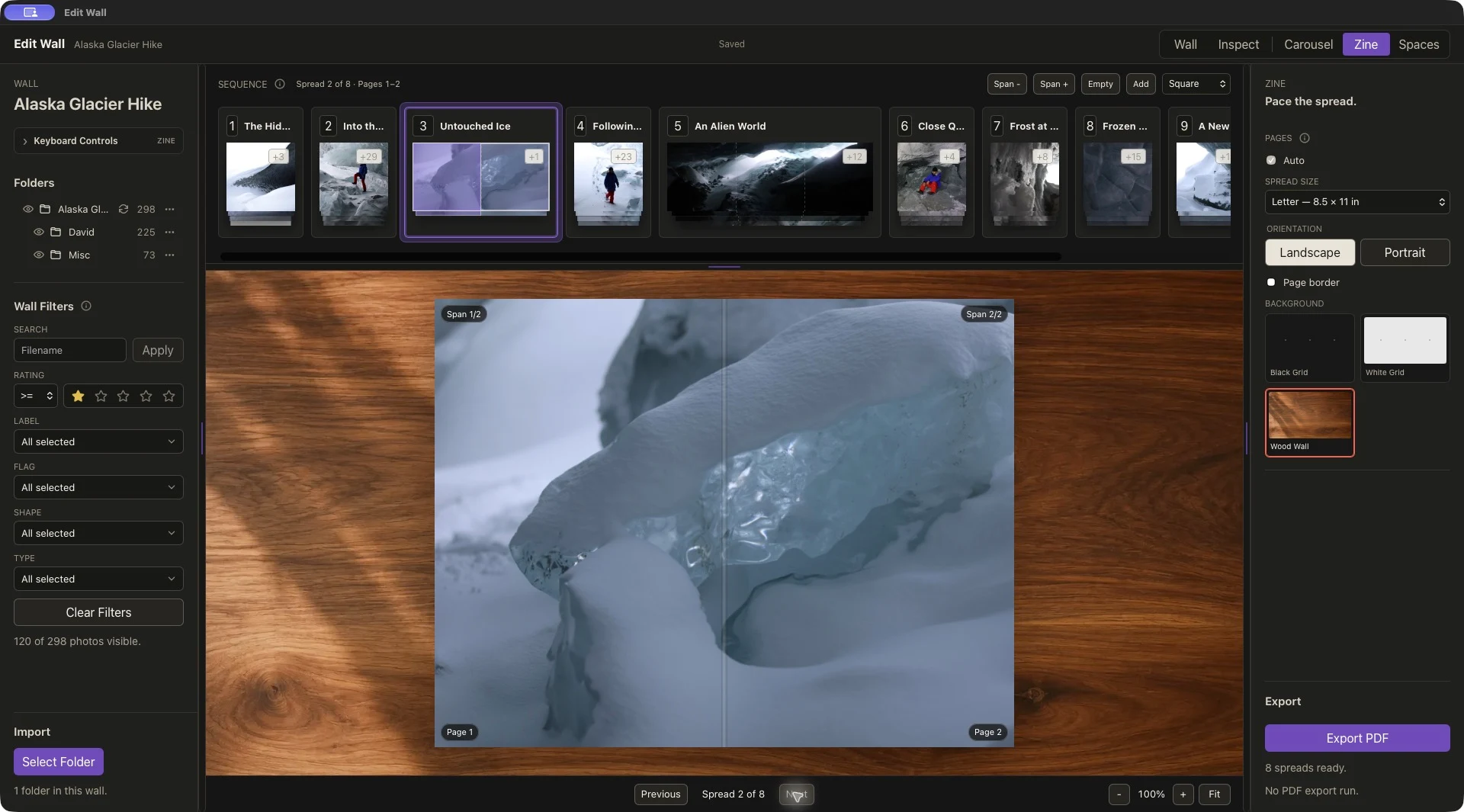
Use Span + and Span − on a selected slot to change how many page positions an image occupies. Review the result with Previous and Next. Here “Untouched Ice” fills both pages of the first interior spread, creating a pause after the front cover.
Keep important faces and details away from the fold, and check what the page crop removes. A wide photograph may deserve more room; a quiet image may work better as a small interruption in the rhythm. Judge both the image and its neighbor.
With Auto enabled, this project produces 16 pages, including two empty pages, from ten selected images and their spans. Zines use page counts in multiples of four. Visit every spread, including the blanks, and decide whether each pause belongs.
06 / Export and proof
Fold a proof before calling it finished.
Choose Export PDF and save the file. We exported this example successfully as an eight-page PDF at Letter landscape size. Each PDF page is one side of a sheet; the file represents a 16-page folded booklet, not eight finished zine pages.
EditWall arranges the PDF in booklet printing order. Open it in a PDF viewer and check every sheet side. Avoid applying another booklet rearrangement in the print dialog. Print a single duplex proof at the intended size, check your printer’s flip direction, then fold and nest the sheets to verify the actual reading order.
The export places images at 300 pixels per inch at the selected size, but source quality still matters. RAW files may supply embedded previews rather than fully developed images. Use finished JPEGs from your photo editor when you need its exact color and tonal rendering.
You do not need another layout application just to export this booklet. If your printer needs a different deliverable, typography, bleed, or specific color-production settings, agree those requirements with them and use a separate layout or prepress workflow as needed. Our export check was digital; a physical print proof is still your final check.
- Does the front cover invite the reader into the story?
- Does each image add something its neighbors do not?
- Are crops, folds, and blank pages intentional?
- Does the folded order match the experience you wanted?
Return to the wall for the next edit. Keep the alternatives; the sequence is something you can revise.
Try it with your own photographs.
For a different reading of the same edit, turn Alaska Glacier Hike into an Instagram carousel.
Starting from Lightroom? Follow the Lightroom workflow guide to import RAW files with XMP sidecars or export finished JPEGs before building your sequence.
Review export options and Mac requirements, or watch the Alaska Glacier Hike walkthrough to see the broader workflow.