
01 / Import & filter
Bring the possibilities onto the wall.
The demo begins with 322 photographs from a glacier cave expedition. A first pass in Lightroom leaves 144 candidates. The aim now is to find ten photographs that work together, while keeping the other possibilities close enough to reconsider.
- Prepare your folder.For RAW files, save Lightroom Classic’s metadata to XMP and keep the sidecars beside the originals. Or export finished JPEGs when you want Lightroom’s color, tone, masks, and crop rendered into the images. Our Lightroom workflow guide covers both paths.
- Create a wall and choose Select Folder.Import the photo folder into EditWall. For the RAW path, select the folder containing both the photographs and their sidecars; do not select the Lightroom catalog or import XMP files separately.
- Apply the first-pass rating filter.In Wall Filters, choose a minimum rating of one star to follow this example. Use your own ratings if your first pass was different. Filtering changes what is visible without removing the other photographs.
- Save the project.Save a .wall file and keep the source photo folders available. Use File → Save As when you want to experiment with a separate version of an existing edit.
02 / Group
Give each group a role in the story.
Move photographs around the wall and look for relationships. The cavern and open landscape establish the place. Portraits give the glacier human scale. Frost and ice details slow the viewer down and invite a closer look.
Select related photographs, choose Create Group, and give the group a useful name. In the demo, these become chapters such as “The Hidden Entrance,” “Following the Path,” and “An Alien World.” Keep similar candidates together so choosing one does not mean losing sight of the others.
03 / Sequence
Find what makes the next photograph belong.
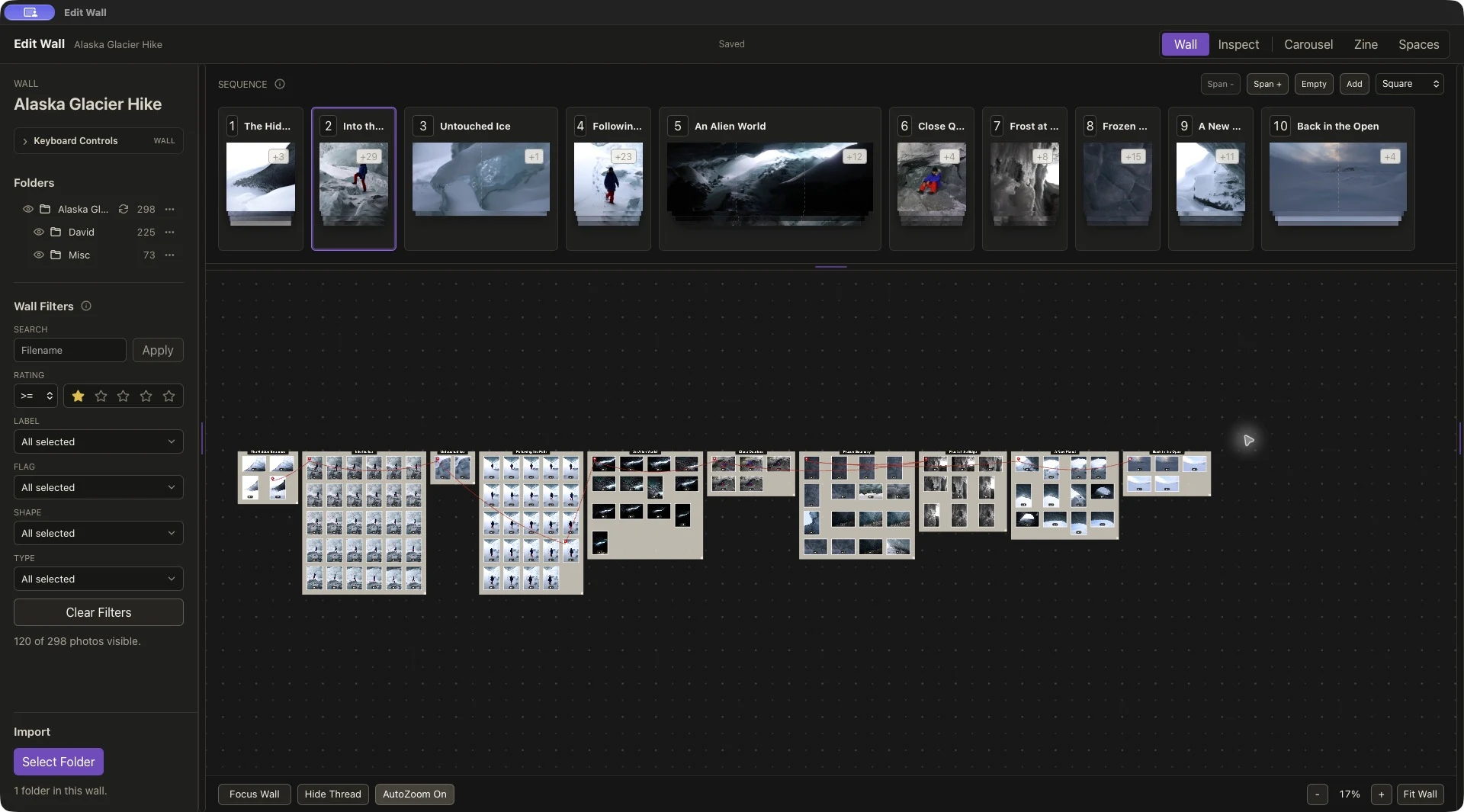
Use Add in the sequence strip, then drag groups or selected photographs into it. Choose one photograph to represent each chapter. Drag slots to change their order; with a slot selected, Up/Down Arrow cycles its candidates and Shift + Left/Right Arrow moves it.
David tests a mysterious opening against a clearer approach to the glacier. Later, the direction of the path and the hiker’s gaze help lead into the cavern photograph. Judge each candidate beside the images before and after it: what does it reveal, and where does it send the viewer’s eye?
The result is ten selected photographs, with alternatives still in their groups. Read the whole sequence, then try one change at a time. You can return to a different candidate without rebuilding the chapter.
04 / Inspect
Resolve close choices at a useful size.
Open Inspect, select a group, and choose Side by Side to compare the Select and Candidate. Review the whole composition, then use the zoom controls when expression, focus, or small details affect your choice.
In the video, the comparison is between two “Following the Path” frames. David chooses the stronger diagonal into the next image, even though the alternative is technically cleaner. Detail helps inform the decision; the relationship between photographs makes the final choice.
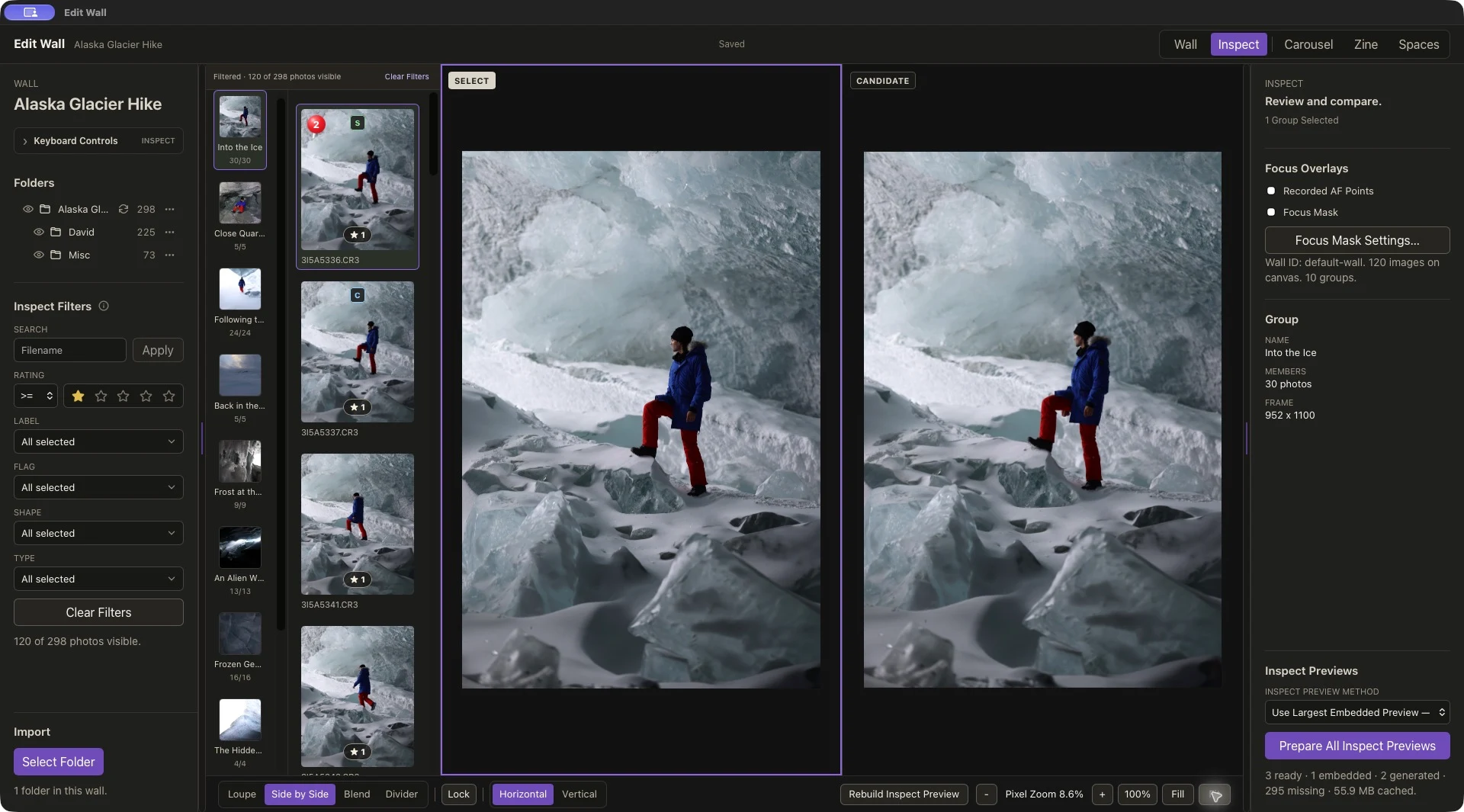
The video mentions an original-resolution preview. Check Inspect Preview Method in your app: the default embedded RAW preview may be smaller than the sensor image, and generating a larger preview does not reproduce Lightroom’s full Develop rendering. Use finished JPEGs when that rendering matters to the comparison.
05 / Carousel
Read the edit one swipe at a time.
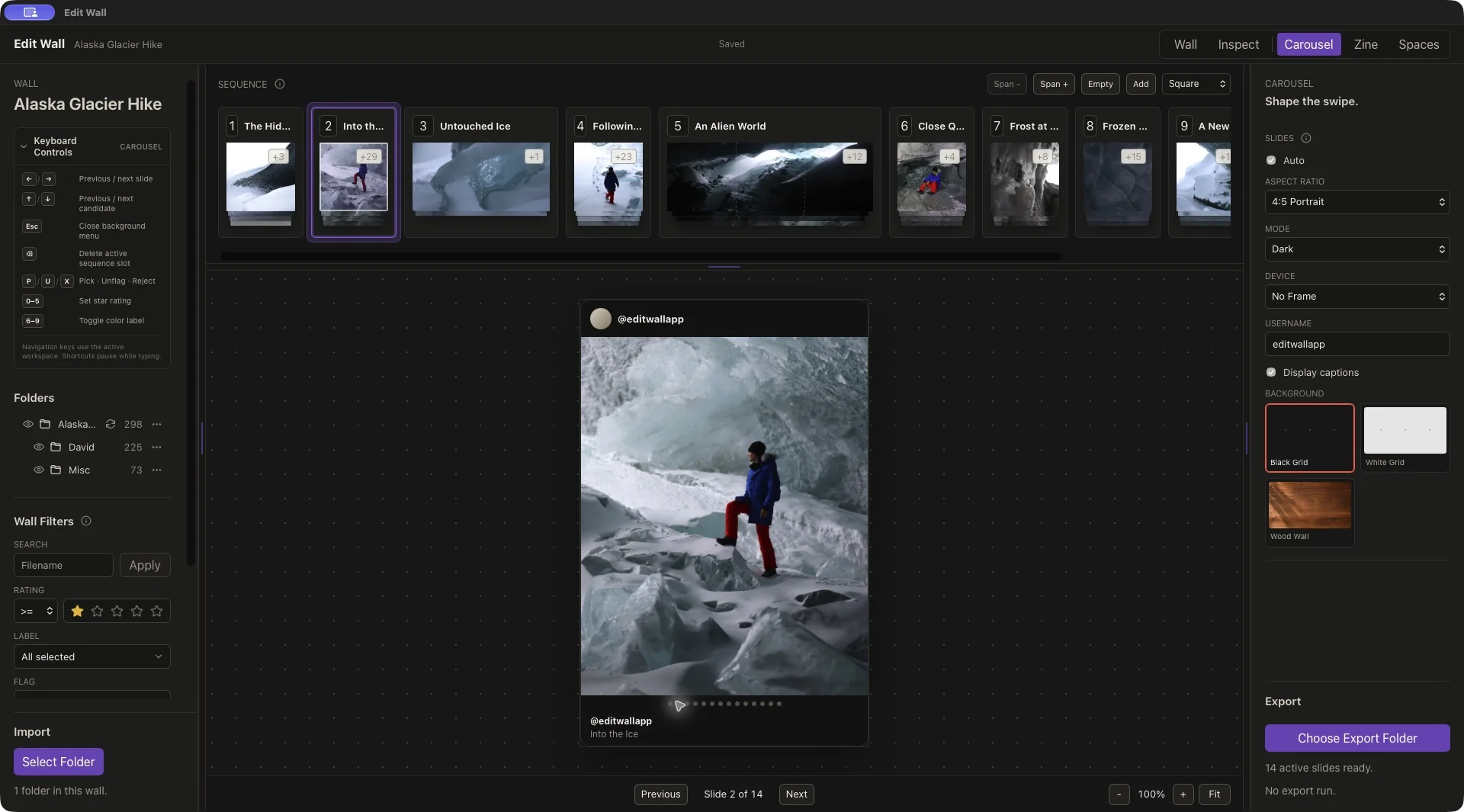
Open Carousel, set its Aspect Ratio to 4:5 Portrait, and leave Auto on. Review every slide with Previous and Next. The frame fills automatically, so check the crop around faces, feet, and edges.
At 3:58, David increases “Untouched Ice” from a span of one to two. Select its sequence slot and use Span + to let the photograph unfold across two consecutive slides. There are still ten chosen photographs, but now eleven slide positions.
Use Choose Export Folder → Export JPEGs to create the ordered images. Open the exported files in filename order and check the joins between spanned sections. The carousel guide covers the export and Instagram handoff in detail.
06 / Zine
Let facing pages change the edit.
Open Zine and review the covers and interior spreads. A photograph now has a facing neighbor as well as a preceding and following image. Check all three relationships before deciding that the order is finished.
The two-position “Untouched Ice” span carries over from Carousel. With eleven occupied positions, Auto allows twelve booklet pages. At 4:49, David extends “Back in the Open” to a span of two, filling the remaining position. He then swaps slots seven and eight to test the transition between details.
Those edits change the shared sequence. If you want different versions for print and Instagram, save separate project copies. Check the cover placement rather than assuming the first sequence slot is the front cover.
Choose Export PDF when the spreads are ready. The PDF is arranged for booklet printing and folding. Follow the zine guide for cover placement, page counts, export checks, and a physical proof before a full print run.
07 / Spaces
See the photographs together in a room.
Open Spaces and choose an included scene. Review successive sections of the sequence with Previous and Next. The demo tries museum, office, and apartment settings to see how the surroundings change the relationship between the photographs.
At 5:37, David increases “An Alien World” to a span of three. One photograph then flows across three frames as a triptych, and the later chapters move forward. With the earlier span changes, the ten choices now occupy fourteen positions.
Choose Export All Scenes to save the ordered scene JPEGs for sharing a gallery concept or discussing an arrangement with a client. Review the actual files as well as the preview.
Keep the story, then check its presentation.
The demo moves from 322 photographs to 144 candidates, then to ten chapters with one active photograph each. Carousel, Zine, and Spaces give you different ways to test that same edit.
- Does the opening invite someone into the sequence?
- Does each photograph add something to its neighbors?
- Have you checked the crops, spans, covers, and final output order?
- Have you saved a separate version if one format needs a different edit?
The timestamps follow the original demo. Screenshots show the later saved Alaska Glacier Hike project in version 1.1.6, so photo totals, selections, and controls can differ. The counts above describe each stage of the video rather than a fixed export size.
For file support, system requirements, and output specifications, see EditWall product details. For the story behind the app, meet its creator.