
Two ways to bring your photographs into EditWall.
This guide covers Lightroom Classic on Mac. RAW files with XMP sidecars and rendered JPEGs are both useful starting points. Choose according to what you want to carry between the apps.
- RAW + XMP: work from the same source folder in both apps and make supported ratings, labels, and crop information available to EditWall. No JPEG export is required for this workflow.
- Rendered JPEGs: use Lightroom’s finished color, tone, masks, and crop as the image you sequence. Lightroom applies those Develop adjustments when it creates the export.
XMP makes supported metadata available outside the catalog; it does not give EditWall Lightroom’s complete Develop rendering. EditWall uses embedded previews for RAW files, and neither path is a live connection to the Lightroom catalog.
Our photographed example is “Into the Ice” from Alaska Glacier Hike, the project in the video walkthrough. The screenshots below document the JPEG path. The RAW-and-XMP instructions are grounded in Adobe’s documentation and EditWall’s metadata support.
Workflow A / RAW files and XMP sidecars
Use the same RAW folder in both apps.
- Import the RAW folder into Lightroom Classic.Choose File → Import Photos and Video and select your folder. For photographs already stored where you want to keep them, choose Add to leave the files in place, then Import. If they are already in the catalog, use their existing folder instead of importing duplicates.
- Enable XMP writing for that catalog.On Mac, open Lightroom Classic → Catalog Settings → Metadata and select Automatically write changes into XMP. This lets Lightroom save metadata outside its catalog as you work. You can instead save manually if you prefer to control when the files are updated.
- Save the selected photographs’ metadata before the handoff.In the Library grid, select the photographs, then choose Metadata → Save Metadata to File, or press Command-S. This explicitly saves the current selection; do not assume that enabling automatic writing means every existing sidecar is already up to date.
- Check the RAW and sidecar together.For a proprietary RAW such as 3I5A5336.CR3, look for a matching 3I5A5336.xmp in the same folder. Keep the names paired and the files together when moving or copying them. DNG is different: Lightroom normally stores its XMP metadata inside the DNG file.
- Open that RAW folder in EditWall.Create or open a wall, choose Select Folder, and select the folder containing the RAW files and their sidecars. Import the photo folder; you do not import the XMP files separately or select the Lightroom catalog file.
- Check a photo, then refresh after changes.Select a RAW photograph and review its rating and available crop information in EditWall. After saving further metadata changes from Lightroom, use the imported folder’s Rescan control in EditWall and check again. Local EditWall overrides can remain in effect; see troubleshooting below.
For the Lightroom steps, see Adobe’s folder import instructions, automatic XMP setup, and manual metadata saving and file-format behavior.
The RAW preview may differ from Lightroom’s current Develop view even when a rating or crop transfers. Use the JPEG path when the finished rendering is the part you need to preserve. Lightroom may also create an ACR sidecar for some edits; keep it with the original, but do not expect EditWall to reproduce Adobe masks or AI adjustments from it.
Workflow B / Rendered JPEGs
Give your sequence its own folder.
- Finish your edit in Lightroom Classic.Select the photographs you want to compare. Complete the color, tonal, and crop adjustments you want visible in EditWall.
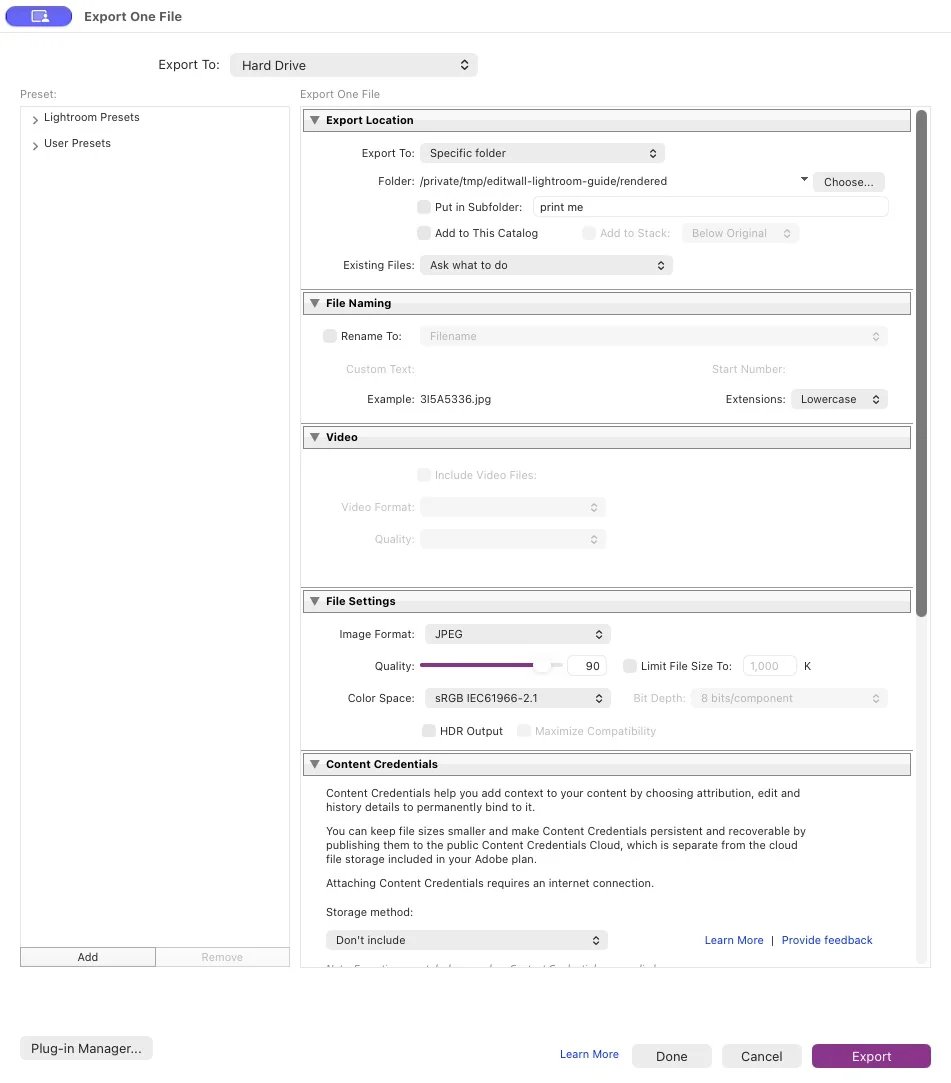
- Choose File → Export.Export to Hard Drive and choose a dedicated local folder. Keep it somewhere stable: EditWall needs access to the source files when you work and export.
- Use JPEG and sRGB.For our test, Quality was 90 and Resize to Fit was off. This preserves the available pixel dimensions for later crops and outputs. These are example settings, not mandatory values.
- Choose the metadata to include.We selected All Metadata to test the existing star rating. Output sharpening and watermarking were off. Review these options for your own intended output, then choose Export.
Our source, 3I5A5336.CR3, produced 3I5A5336.jpg at 5464 × 8192 pixels. Its embedded metadata included the existing one-star rating. Exporting creates a new rendered file; you do not need to add it back to the Lightroom catalog for EditWall to use it.
Both workflows / Check the handoff
Verify one photograph before importing a whole edit.
In EditWall, choose Select Folder and select either your RAW folder with its sidecars or your JPEG export folder. If that folder is already imported, use Rescan to pick up added files and refresh supported metadata. Keep the source folder available while you work.
Select the photograph and open Inspect → Loupe. For RAW + XMP, check the embedded preview and supported metadata; for JPEG, compare the image with your Lightroom export. In Photo Metadata, check the filename, dimensions, and any rating you expected to carry over. Our JPEG test displayed the glacier photograph with 1 / 5 stars, 5464 × 8192 dimensions, and an sRGB profile.
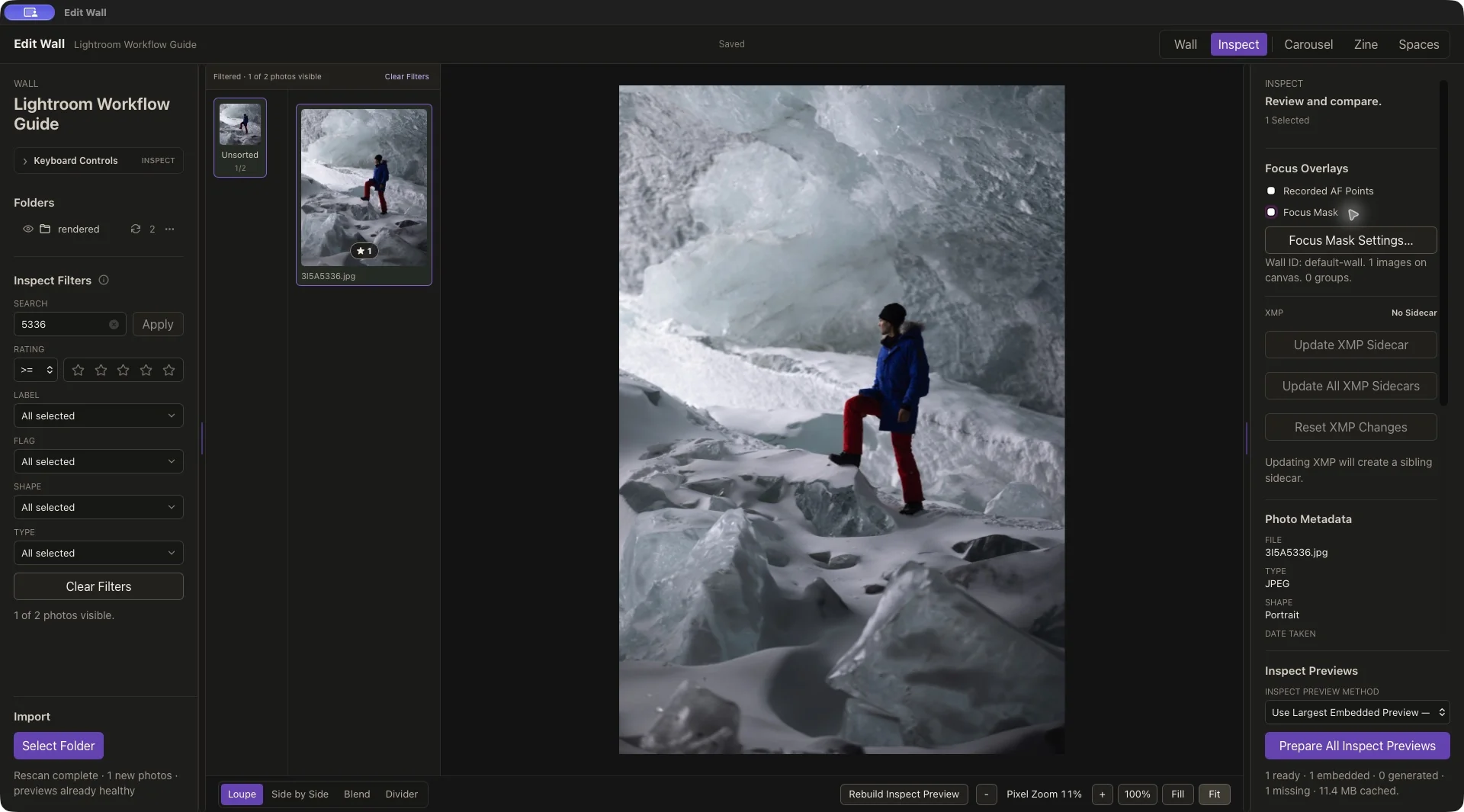
The XMP panel says No Sidecar in this example. That does not mean there is no metadata: the JPEG contains its own embedded information. Reading the imported file did not require writing an XMP sidecar or changing the original RAW photograph.
Both workflows / Build the story
Move from individual edits to relationships.
Return to Wall, arrange the imported photographs, group alternatives, and place your choices in the sequence. Use Inspect to compare candidates before choosing the next image. Keep Lightroom as the place where you finish the individual photographs.
Once the order works, follow the Instagram carousel guide for ordered JPEG slides or the zine sequencing guide for a booklet proof. Both use the Alaska Glacier Hike project, so you can see how this photograph fits into a longer edit.
For RAW + XMP, save metadata in Lightroom and rescan the folder in EditWall after changes. For JPEGs, export a new version when you revise the appearance; a separate version folder makes that change explicit. Check the result before relying on it. Lightroom catalog edits do not update an existing JPEG or wall automatically.
Reference / What carries between apps
Know what a sidecar can carry.
| Information | How it reaches EditWall |
|---|---|
| Finished color and tonal edits | Use a rendered JPEG. An XMP sidecar is not a replacement for Lightroom’s rendering engine. |
| Star ratings and color labels | Supported values can be read from embedded metadata or an adjacent XMP file when actually saved there. |
| Crop information | Supported Lightroom crop metadata can be read where available. Check the result, especially with RAW previews; this does not imply support for every Develop adjustment. |
| Collections, catalog structure, and virtual copies | These do not become an EditWall project or sequence automatically. Export the versions you want to use. |
EditWall’s Update XMP Sidecar is an explicit write action for supported local changes on a master photo, including rating, label, flag, and crop. It writes a sibling sidecar; it does not update the Lightroom catalog directly. Virtual-copy changes stay local. Importing or viewing a photo is not the same as choosing this command.
This guide verified the JPEG import and embedded rating. It does not establish a complete two-way Lightroom metadata workflow. In particular, a sidecar written beside a JPEG should not be assumed to update metadata embedded in that JPEG or its Lightroom catalog entry. See product details for the scope of compatibility.
When the two views disagree.
- The RAW looks different: use a JPEG exported after your final Lightroom edits. An embedded RAW preview may not show the same rendering.
- A RAW rating is missing: save metadata from Lightroom, confirm the matching XMP is beside the RAW file, and rescan the folder in EditWall. For JPEGs, check that the export included the rating.
- A new export is missing: confirm the destination folder and filename, then rescan that imported folder in EditWall.
- Metadata appears unchanged after a rescan: local EditWall overrides can remain in effect. Review the selected master’s XMP state. Reset XMP Changes discards local overrides, so use it only when you intend to restore the metadata from disk.
Start with one photograph, confirm its appearance and metadata, then bring in the rest of your edit. For help with a specific file, visit EditWall support.
Tested October 26, 2026 with Lightroom Classic and installed EditWall 1.1.6. Screenshots show the actual JPEG export and import. The RAW-and-XMP setup was checked against Adobe’s documentation and EditWall’s implementation; it was not newly exercised end to end for this revision. A full metadata round trip was not tested. Lightroom is an Adobe product.