
Choose around the work you need to finish.
A loose arrangement can help you find relationships between photographs. A saved order, a review board, a booklet PDF, and a set of carousel slides are different outcomes. Start with the one you need.
Scroll the table sideways to compare outputs. Keyboard users can focus the table and use the arrow keys.
| Tool | A useful fit when… | What you can take away |
|---|---|---|
| EditWall | You want a local Mac workflow from photo selection to a sequence and its layouts. | A saved wall, carousel JPEGs, booklet PDFs, or a gallery-scene JPEG. |
| Apple Freeform | You want photographs, sketches, and notes together on an Apple-device board. | A shared board or a PDF of the board. |
| Miro | You want to discuss and arrange the edit with other people online. | A collaborative board, frame-based PDF pages, or board/frame images; export options depend on plan. |
| PureRef | You want a focused reference-image canvas with local scene files. | A saved scene, a composite image, or separate images with controllable export order. |
EditWall / Photo selection through output
Keep the wall connected to the sequence.
EditWall brings local photo folders onto a freeform wall, with groups for alternatives and Inspect for close comparisons. The sequence carries into Carousel, Zine, and Spaces. The Alaska Glacier Hike walkthrough shows how those stages connect.
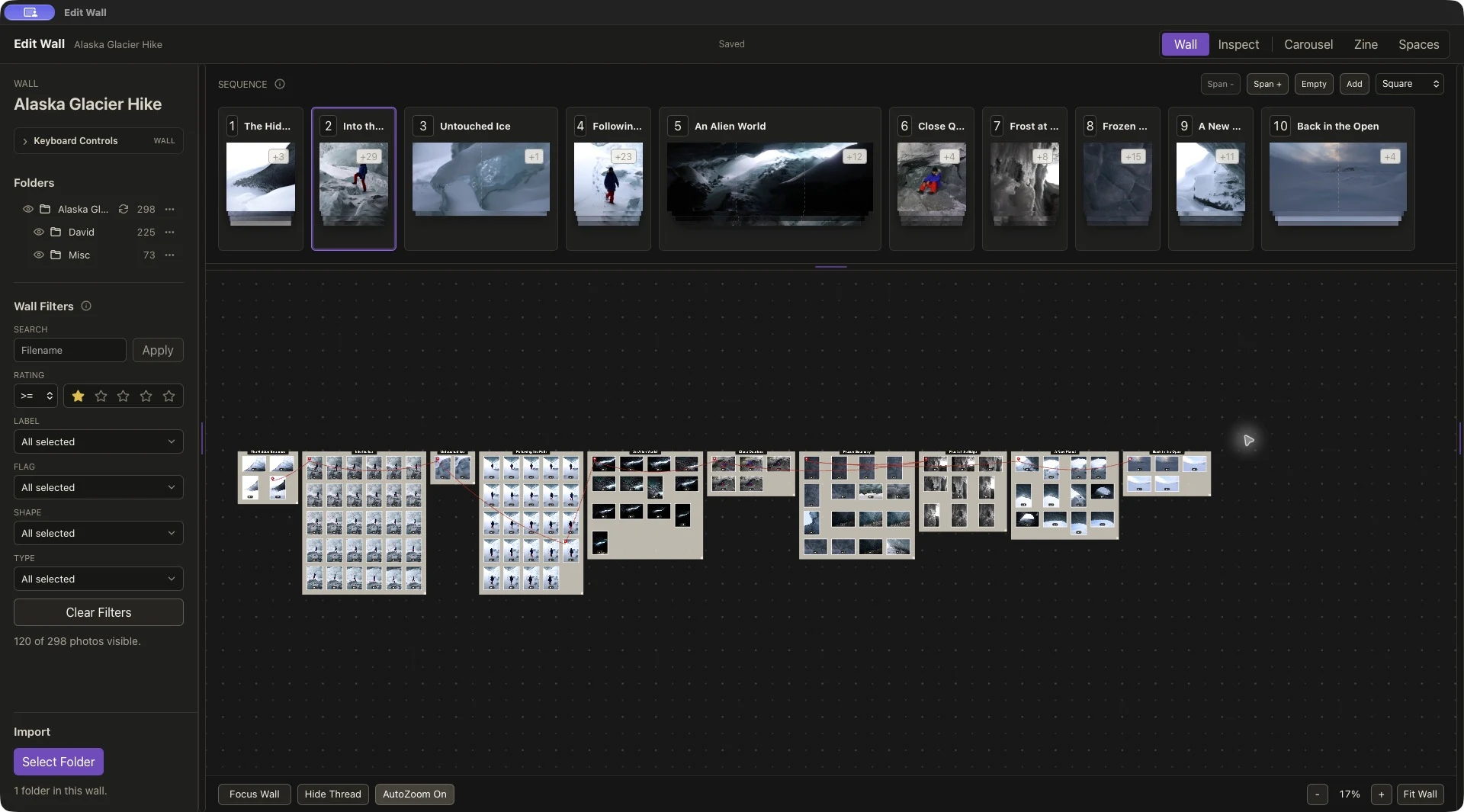
What matters for a photographer: supported ratings and XMP crop metadata can accompany imported files. RAW files use embedded previews; use rendered JPEGs when you need Lightroom’s finished appearance. This is not a live Lightroom catalog connection. See the RAW + XMP and JPEG workflows.
The tradeoff: Solo is a local Mac workflow. Cloud collaboration is coming soon. The current App Store requirements are Apple M1 or later and macOS 13 or later. Solo is a one-time v1 purchase with v1.x updates; check current pricing.
Export details cover carousel JPEGs, zine PDFs with pages arranged for printing and folding, and gallery-scene JPEGs. For a printed edition, confirm the required page size, bleed, and color settings with your printer.
Apple Freeform / A flexible shared board
Put the photographs beside your notes.
Freeform is a natural starting point when the edit includes sketches, written ideas, and photographs. Apple documents dragging photos in from Finder or Photos, moving and resizing board items, and previewing images with Quick Look. You can work out a reading order by arranging the images yourself. Apple’s photo tools.
Where it fits: an informal edit or a visual discussion across Apple devices. Freeform supports shared-board collaboration through iCloud; participants need the required Apple Account and iCloud setup. Sharing requirements.
Exporting your arrangement: Freeform can export a board as a PDF, which you can also convert to an image in Preview. For a zine or carousel, plan how you will turn that board into individual slides or pages arranged for printing and folding. PDF export instructions.
Some premium Freeform features require Apple Creator Studio. The basic photo-board exercise here does not depend on generated images or premium content. Freeform guide for macOS Tahoe.
Miro / Discuss the edit together
Miro for photographers: arranging and reviewing a photo sequence.
Miro can give photographers a shared space to arrange images and discuss an edit. Its image canvas, notes, and comments support visual collaboration. A photography mood board often gathers references before a shoot; after a shoot, you can use the same tools to explore relationships between your own photographs. Miro’s mood-board tools.
A workflow to try: upload a small set of rendered JPEG selects, keep alternatives together, and use frames for candidate pages or groups. Arrange a first sequence, then invite a collaborator to leave comments beside the photographs. Notes such as “stronger opening” or “too similar to the previous frame” can keep the discussion focused on the story.
Where it fits: a remote editorial review where feedback stays beside the images. Real-time collaboration requires internet access. Miro documents offline board viewing in its mobile app; for editing on a Mac, plan to be online. Miro’s access guidance.
Exporting the sequence: frames can become separate PDF pages, with their order set before export. A board area or individual frame can also be exported as an image. Free-plan exports are limited to small size; higher-resolution options depend on the plan, and the board owner’s settings control export access. Miro export options.
A frame-based PDF can serve as a review copy. For a finished carousel or zine, check slide dimensions, image quality, and how pages will be arranged for printing and folding. Review current plans for the boards, collaborators, and export quality you need.
Where EditWall fits: if you want to work locally on a Mac, EditWall connects photo selection and sequencing to Carousel, Zine, and Spaces layouts. Our Alaska Glacier Hike walkthrough shows that process from import to export. Miro’s shared review board serves a different need; EditWall Cloud collaboration is still upcoming.
PureRef / An image-focused canvas
Keep a collection of photographs in view.
PureRef is a close alternative for the act of arranging images. You can drag photographs into the canvas and use its alignment and arrangement tools to organize them. Images are embedded in saved scenes by default, with an option to link external files instead. Image handling and arrangement tools.
Where it fits: a focused visual reference board that you save as a local .pur scene. It is worth trying if the main task is seeing alternatives together and adjusting their relationships.
Exporting your images: PureRef can export a scene as one image or export photographs separately. Its handbook documents sequence-number filenames and control of export order through the Hierarchy. You can keep the exported images in order, then use them in your page or slide layout. Saving and export options.
Check the license: personal, small-business, and business options differ. Choose the license that covers your photography work. PureRef licensing options.
Try the same small edit.
Before moving a whole project, try this exercise with twelve rendered JPEGs from one shoot.
- Find six photographs that belong together.Keep the other six visible as alternatives. See how easily you can compare two similar frames.
- Make two possible orders.Choose an opening, a change of pace, and an ending. Swap a pair and check whether the story reads differently.
- Save and reopen your work.Check which files must remain available and how you would move or back up the project.
- Make the output you actually need.Try a review PDF, ordered images, or a booklet proof. Check order, crop, dimensions, and readability before committing to the workflow.
If RAW files and ratings are essential, repeat the import with one of your own RAW files and its saved metadata. A successful JPEG test does not establish RAW or XMP compatibility in any of these tools.
Choose for the finished result as well as the canvas.
Start with Freeform for a flexible board in an Apple-device workflow, Miro for online discussion around the edit, or PureRef for a focused reference-image canvas. Choose EditWall when you want photo selection, sequence, and dedicated output layouts connected in a local Mac app.
To see that last workflow in practice, follow Alaska Glacier Hike from import to export, then explore the zine or carousel guide.
Sources are linked beside the relevant claims. Documentation checked October 27, 2026: Apple’s macOS Tahoe guide, Miro’s official help and product pages, and the PureRef 2.1 handbook. EditWall details follow our published product and workflow guides. Prices, plans, and capabilities can change. Product names belong to their respective owners; this comparison is published by EditWall.